SPACE Navigation Guide
A server-authoritative navigation simulation that lets you drift through space under real physics, right in your browser. This single page holds everything about the game — how to start, how to handle your spacecraft, places worth visiting, and the real physics that drives this universe. Jump straight to whatever you need from the table of contents on the left.
About the Game
SPACE is a game where you fly through, in person, a universe you'd otherwise only see in photographs. You wake up in a Crew Dragon capsule docked to the International Space Station (ISS), undock, cross the solar system past planets, comets, and probes, and finally leave the solar system behind for real, measured nearby star systems, and onward to black holes and the edge of the observable universe.
The heart of it is real scale and real physics. Celestial positions are computed from measured orbital elements (J2000), gravity is summed N-body, and speed can never exceed the speed of light. The faster you fly, the slower your clock runs compared to the outside world (relativistic time dilation), and other spacecraft always appear as they were in the past, by exactly the time it took light to reach you.
🪐 Server-Authoritative Simulation
All physics, celestial, and spacecraft calculations are handled by the server. The screen merely draws the result — everyone shares one and the same universe.
🔓 No Login Required
A spacecraft is created the moment you connect. No sign-up, no email; if you like, you can choose a backup method later.
🌌 True Scale
From the kilometers of the solar system to the light-years of star systems and the megaparsecs beyond the galaxy — the units flow on without a break. (Distances and body sizes are to scale; spacecraft, though, are drawn larger for visibility.)
📱 Mobile / Desktop
Both touch and mouse are supported. Designed for an idle rhythm where you drop in every few days just to set a course.
Purpose · What You Do
SPACE has no "end you must win." Instead, the goal is to feel the true size and time of the universe. What players actually do is simple — drop in and ① see where you are right now, ② decide which way to head, and ③ try to make contact with someone. These three beats are the game's rhythm.
Here's What You'll Experience
- Real-scale spaceflight — fly past the canyons of Mars, Jupiter's Great Red Spot, Saturn's rings, and probes like Voyager in person.
- Black holes and time dilation — experience extreme gravitational time dilation near an event horizon. In the brief moment you linger, thousands of years pass in the outside world.
- The twin paradox — fly close to the speed of light and your onboard clock slows. You can line up your elapsed time against another player's and compare them side by side.
- The loneliness and joy of light delay — distant spacecraft appear only as ghosts of the past, and an emoji you transmit spreads at the speed of light to whoever is near.
- Records and beacons — leave a guestbook entry on the bodies you visit, and drop emoji beacons in deep space for passing ships to find.
- The edge of the observable universe — read redshift, lookback time, and accelerating expansion on the HUD as you travel beyond 4.6 billion light-years.
Quick Start
In your first five minutes you can leave the ISS and set out on free flight. There are only 4 direct controls for your spacecraft (undock · set destination · accelerate · decelerate); the server physically handles the rest of the precision burns on its own.
- Connect — press Play ▶ on the home page and you start right away in a Dragon capsule docked to the ISS. It orbits Earth with a randomly assigned name. (You can rename it if you like.)
- Look around — the default view is the first-person cockpit. Drag the screen to look around. Tap a monitor and that screen comes forward to face you.
- Set a destination — from the star chart/list in the ① Destination
panel (top of the left navigation column), tap a target body to "arm" it (shown in the
Targetrow of the ④ PFD). Your spacecraft begins orienting toward that direction. - Undock from the ISS — undock at the ⑤ Flight Stick (center of the right column). The capsule inherits the ISS's orbital velocity as-is and switches to free flight (not by teleport, but physically).
- Burn (accelerate) — use 🔥 Burn on the ⑤ Flight Stick to thrust in the nose direction. Watch your orbit physically stretch out.
- Arrival · deceleration — as you approach the target SOI, brake with deceleration (a "flip and burn" that flips your attitude 180°), or schedule an orbit insertion, gravity assist, or rendezvous in the ② Route panel (center of the left column).
🚀 First-Flight Tutorial — From the ISS, via the Moon, to Mars
On your first connection you start in a Dragon capsule docked to the International Space Station (ISS). This tutorial walks you, screen by screen, from there through undocking → targeting the Moon → entering lunar orbit → departing for Mars — showing exactly which cockpit buttons to press. Everything happens on the six monitors of the first-person cockpit (→ cockpit controls).
0. The starting point — a Dragon capsule docked to the ISS
The moment you connect, a spaceship is created for you, docked to the ISS in low Earth orbit. The default view is the first-person cockpit; press V to step out to the external (third-person) view and look around your ship.

1. Undock from the ISS
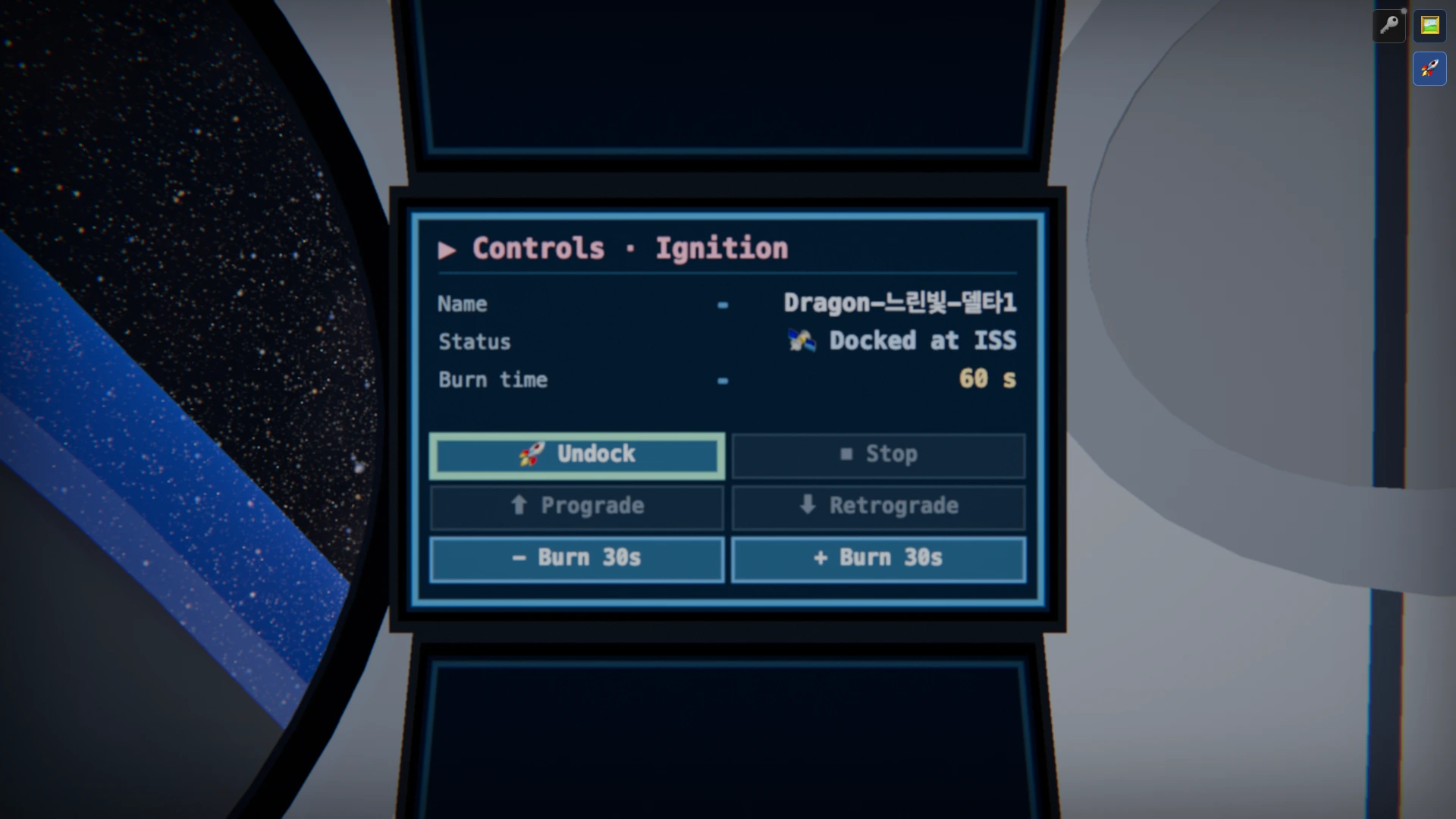
You have to separate from the ISS before free flight begins. In the cockpit, tap the ⑤ Controls · Ignition panel (center of the right column) to bring it face-on, then press 🚀 Undock.
2. Target the Moon
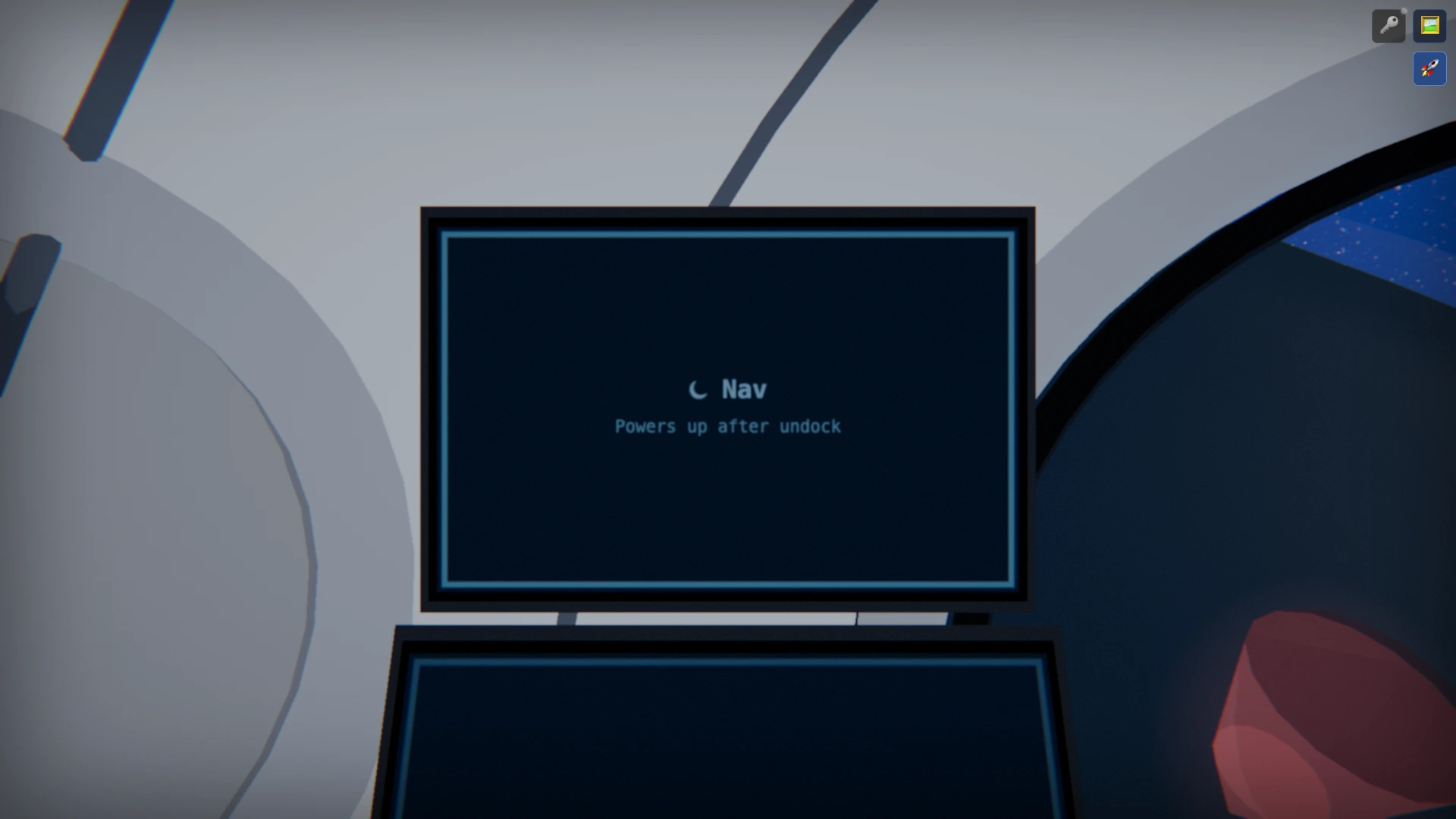
Tap the ① Destination (Nav) panel (top of the left column) to bring it face-on. In the body list, find Earth ▸ Earth's moons ▸ Moon and tap it to "arm" the Moon as your target. The compass dial at the top shows Moon with the current distance (about 380,000 km), and the ship starts turning to face it.
3. Queue a lunar orbit insertion
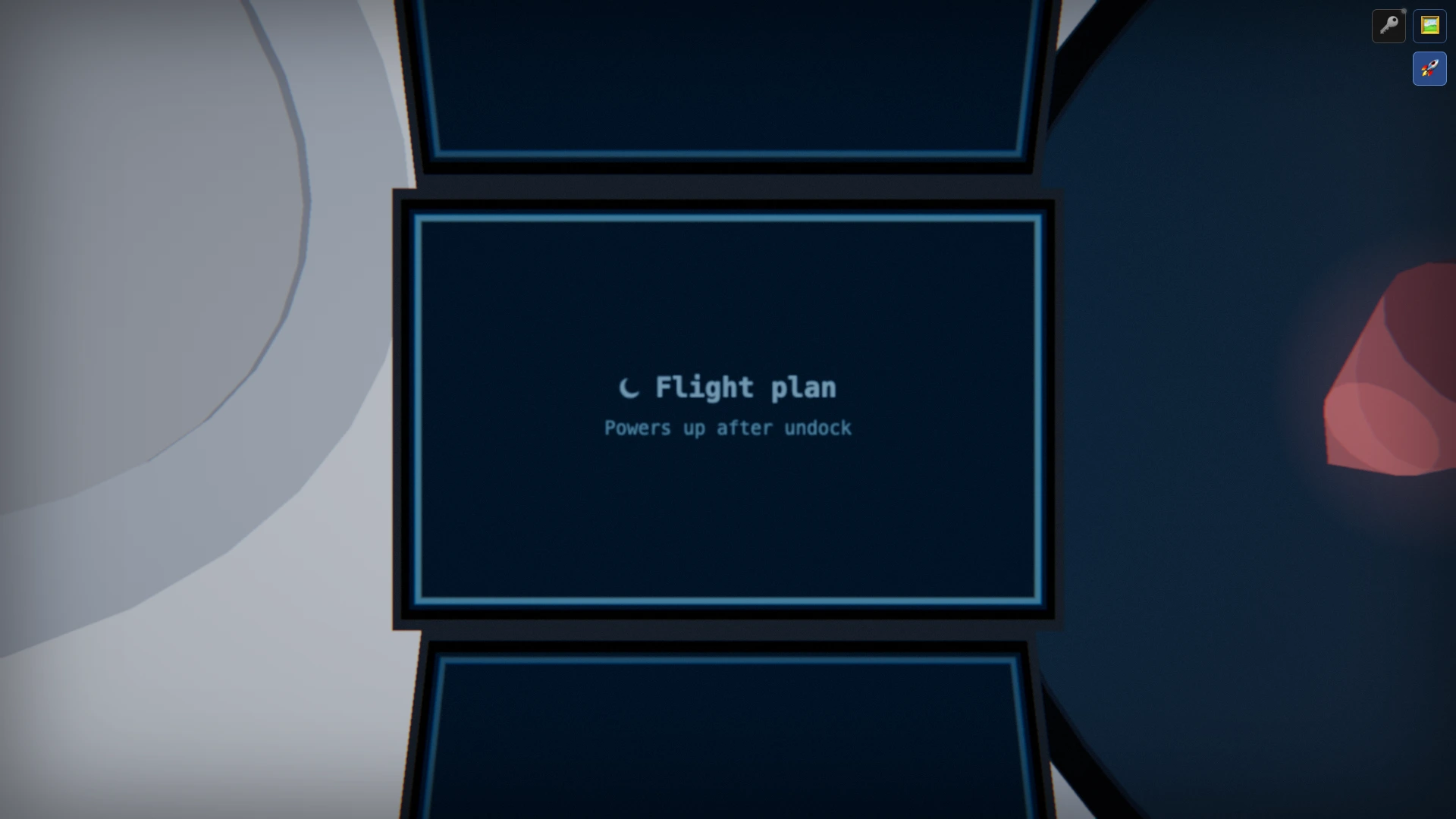
To actually enter orbit around the Moon rather than just fly past it, open the ② Route · Flight Plan panel (center of the left column) and press ➕ Orbit. That reserves a "lunar orbit insertion" as one step in the flight-plan queue.
4. Run the autopilot — under way to the Moon
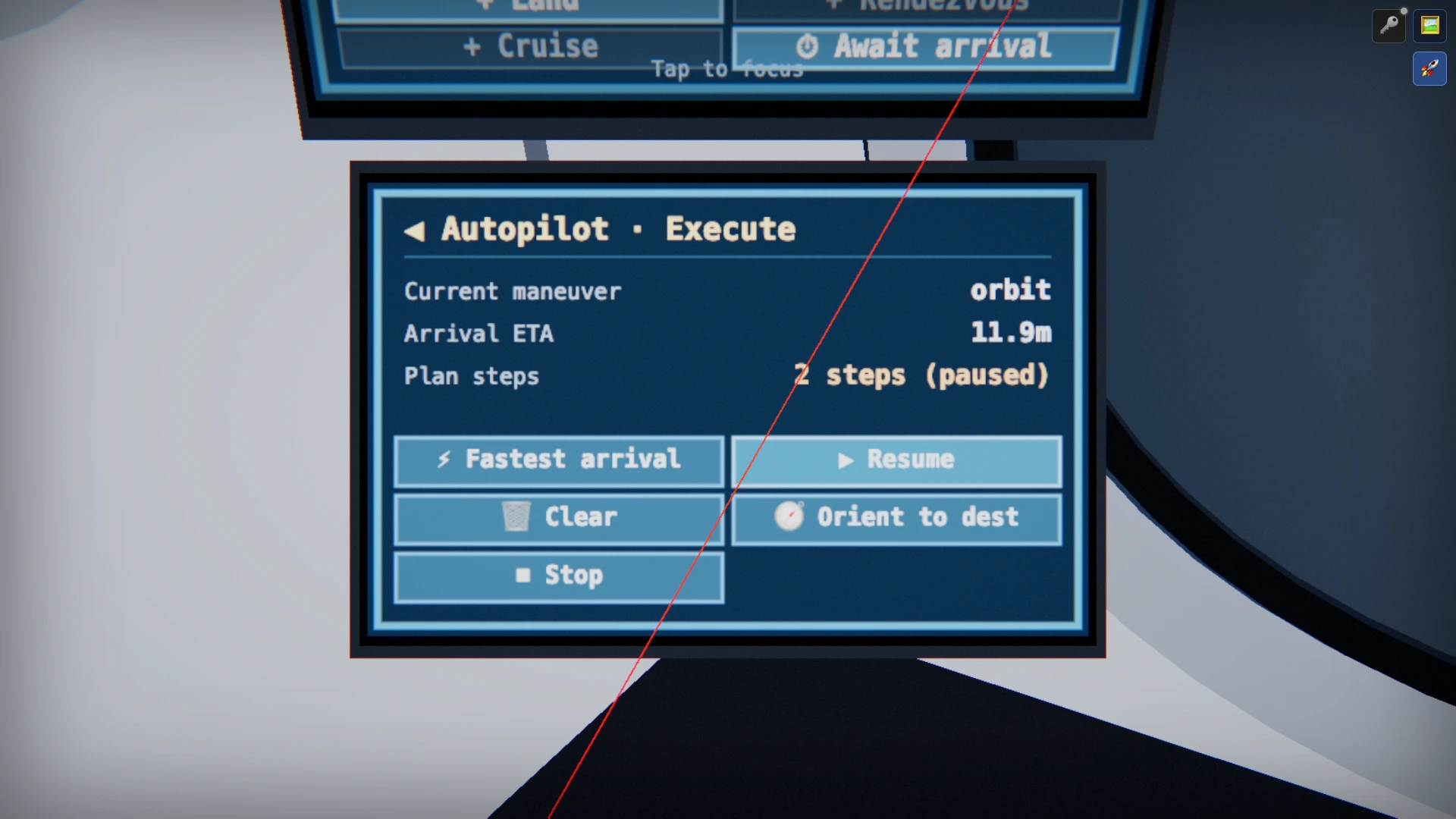
Once a step is in the plan, the ③ Autopilot · Execute panel (bottom of the left column) starts running it automatically. The ship turns and burns toward the Moon on its own, and the arrival ETA and current maneuver are displayed. (No rush — you can leave it and come back days later; this is an idle voyage.)
5. Arriving in lunar orbit
When the approach finishes, the ship settles into a circular orbit around the Moon. Press V for the external view to see the capsule circling the cratered Moon up close.
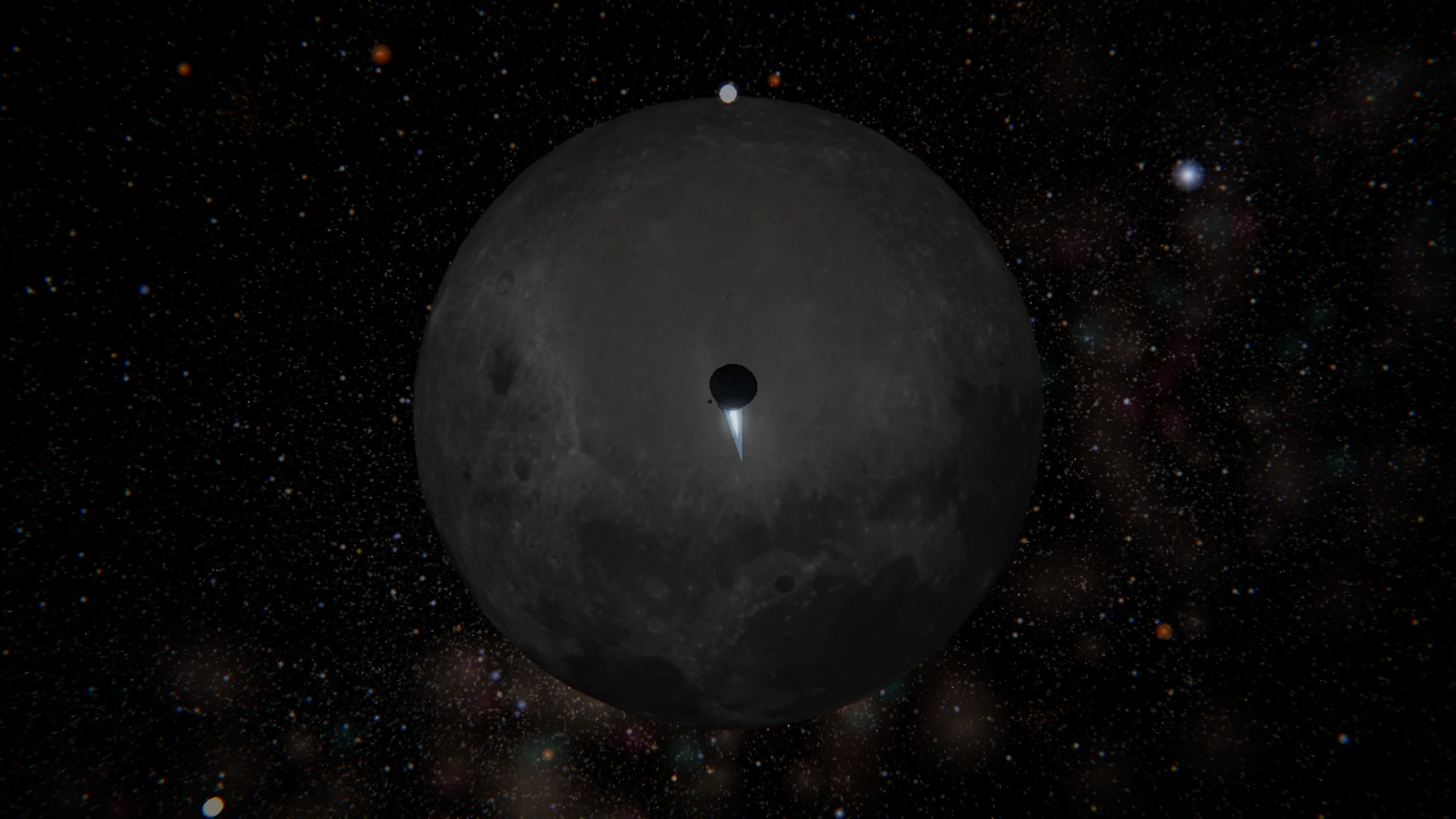
6. Depart lunar orbit for Mars
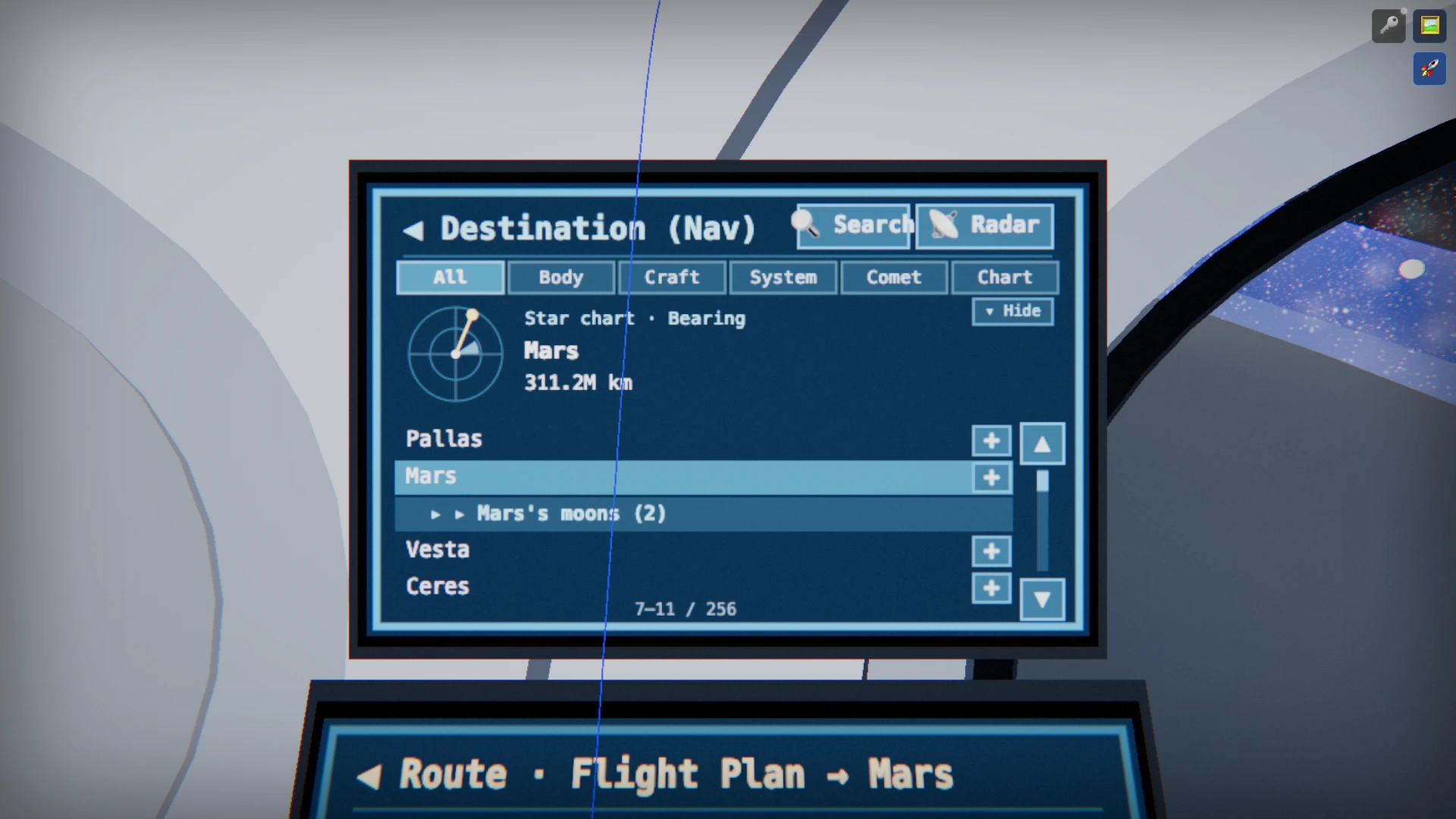
Open the ① Destination panel again and tap Mars in the list. The compass shows Mars and the current distance (hundreds of millions of km). There are three ways to depart:
- ③ Autopilot → ⚡ Fastest arrival — leave lunar orbit and dash straight to Mars in the shortest fuel-free time (simplest).
- ② Route → ➕ Orbit — queue a Mars orbit insertion so you settle into orbit on arrival.
- ⑤ Controls → 🔥 Fire — accelerate manually and fly it yourself.
Login · Spaceship Backup
SPACE has no email, no password, and no sign-up. Ownership of your spaceship is bound to a secret token stored on your device when you connect. So on the same device and browser you return to the same spaceship next time without doing anything — and it creates no personal information.
Backup lets you load that spaceship on another device, or get it back if you lose your device. There are two ways — a recovery code and a passkey — and you can use either one, or both.
Opening the backup · login screen
- In the cockpit, press T to raise the virtual iPad.
- Open the 🔑 Account tab in the top tab bar.
- Tap 🔐 Open recovery code · passkey setup to unfold the backup · login screen below.
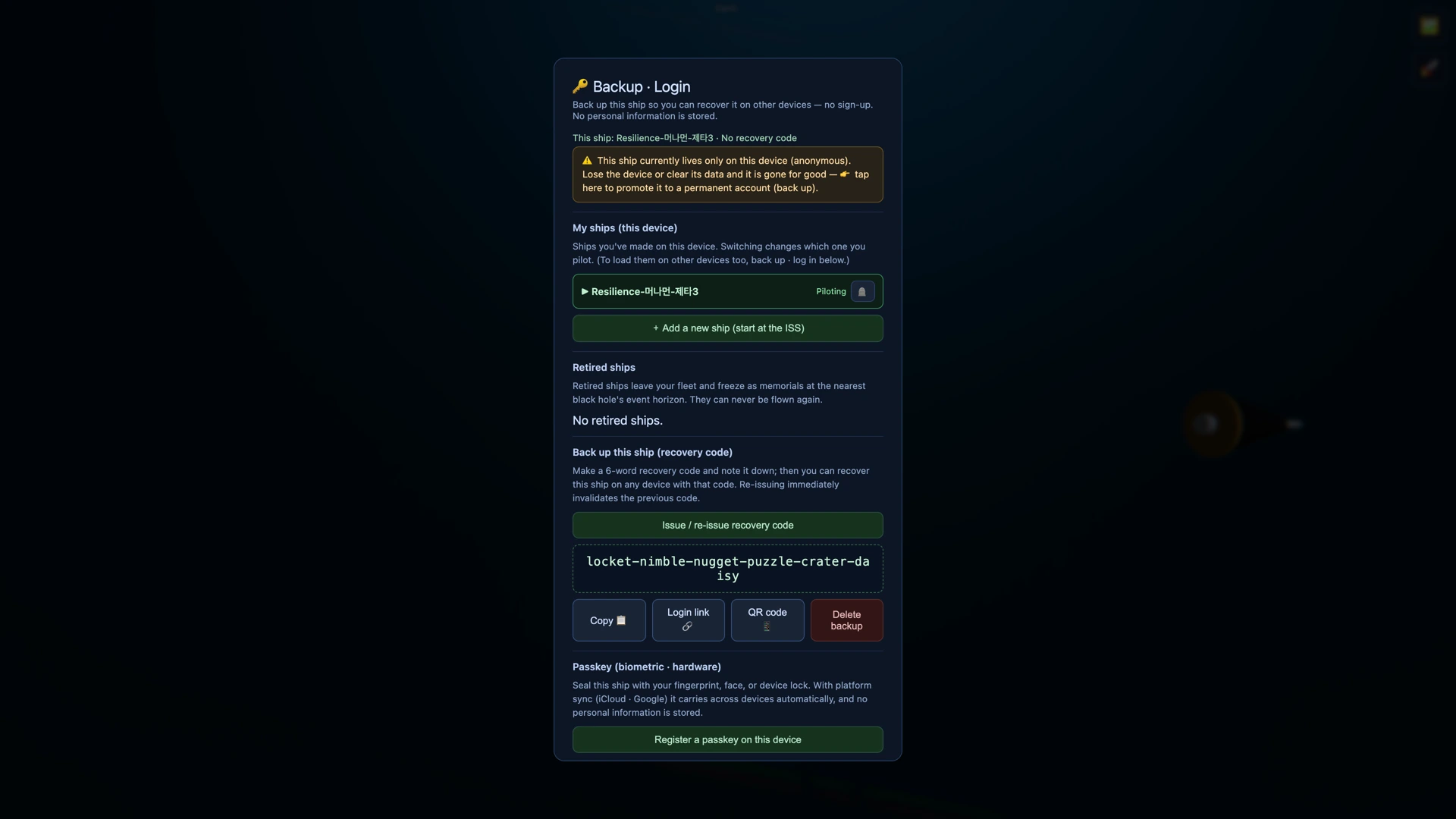
Method 1 — Recovery code (6 words)
- Tap Issue / re-issue recovery code and a 6-word code appears,
like
husky-jumbo-ripple-jasmine-monsoon-engine. - Use Copy 📋 to save it somewhere safe (a notes app, password manager, etc.). Or use Login link 🔗 to make a one-tap login link — it carries the same access as the code, so keep it to trusted places only.
- Type that code on another device to return to the spaceship. Re-issuing immediately invalidates the old code.
Method 2 — Passkey (fingerprint · face · device lock)
- Tap Register a passkey on this device and confirm with your fingerprint/face/PIN to seal this spaceship onto the device (WebAuthn).
- With platform sync (iCloud/Google), it carries over automatically to your other devices.
- Registered passkeys can be deleted individually from the list.
Logging in on another device
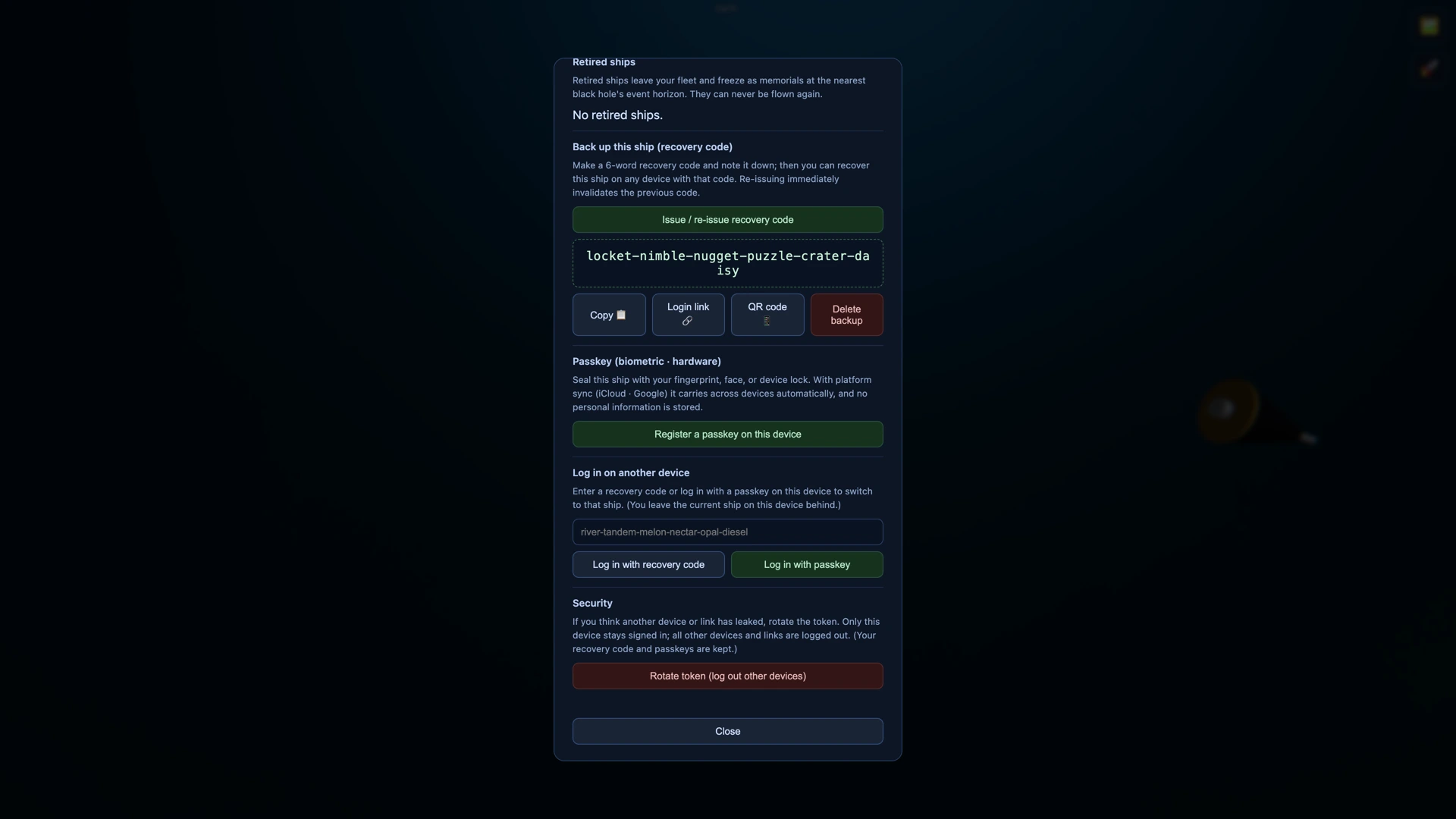
- On the new device, open the backup · login screen above (iPad → 🔑 Account → open setup).
- Paste your recovery code into the Log in on another device field and tap Log in with recovery code, or tap Log in with passkey.
- The helm switches to that spaceship. (The ship on this device is left behind — if you backed it up too, you can load it again anytime.)
Multiple ships · security
- Multiple ships — on one device you can make more ships with + Add a new ship and switch between them in the list. Back each one up and they carry across devices together.
- Token rotation — if you think a recovery code or login link leaked, rotate the token to keep only this device and log everything else out (your recovery code and passkeys are kept).