New Flight Console (default) — the whole voyage on one card
As of 2026-07-16 the unified glass console is the default control scheme. A single card at the bottom of the screen gathers the entire voyage — destination, flight-plan timeline, time left in the current leg, remaining distance · speed · ETA · time dilation, plus the buttons that make sense right now. You can fly from departure to arrival on this one card without ever learning the six cockpit monitors. Press B anytime to hop to the classic 6-monitor cockpit and back; your choice is remembered.
The opening screen — how to read the card
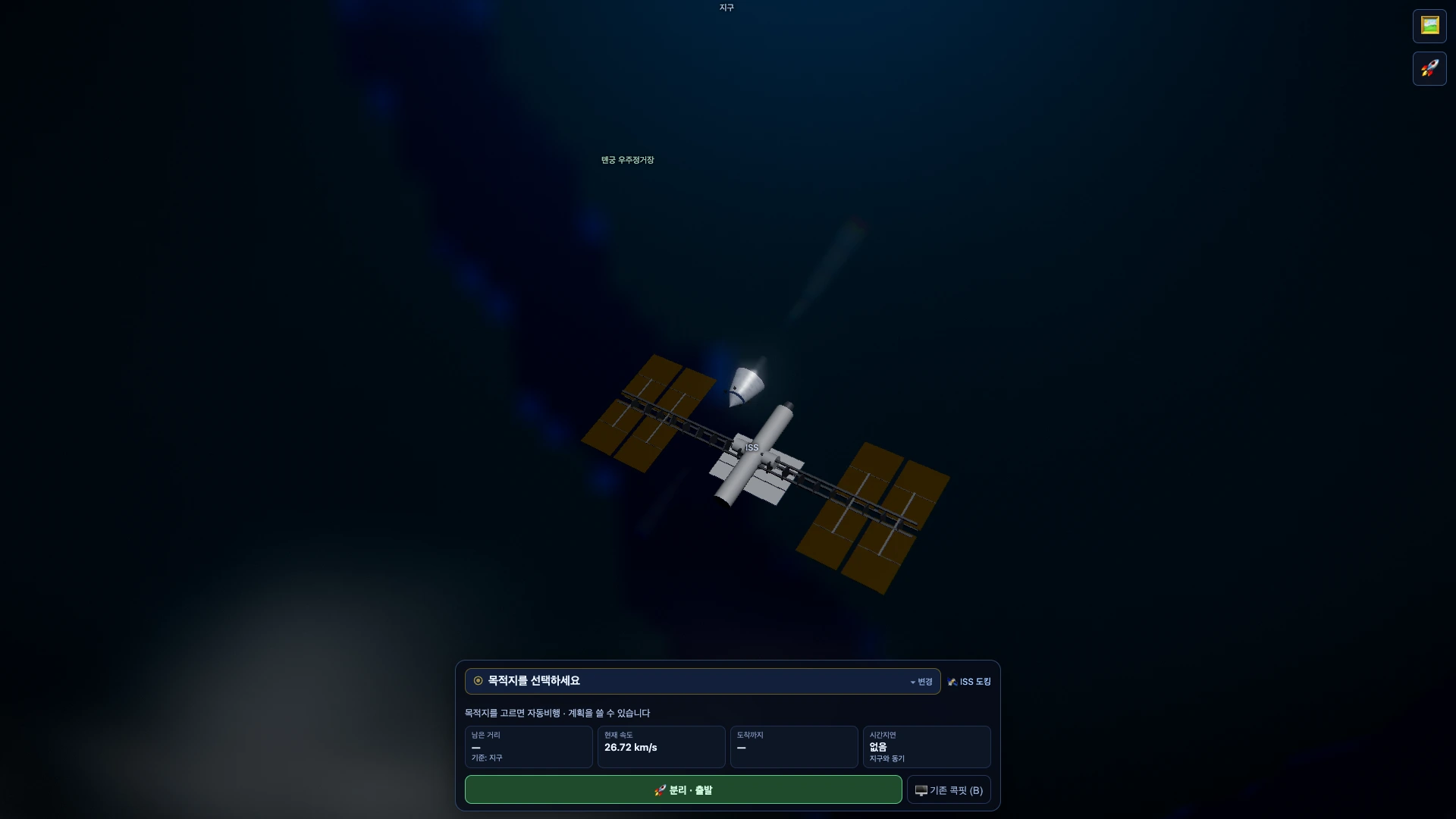
- Top row = destination. Empty at first ("Choose a destination", pulsing). The right end always shows your flight-status badge (🛰 docked / 🚀 free flight / 🛬 landed / ✦ interstellar cruise).
- The four instruments — Distance (the small line names the reference body), Speed (with the fraction of light speed once you're relativistic), ETA (the server's true closing estimate; with a plan it also shows "plan n/m done"), and Time dilation (γ plus how much younger your ship clock is vs Earth — the souvenir of relativistic travel).
- The button row follows your situation. Docked → just Undock · depart; landed → Launch; in free flight the autopilot buttons below appear.
Choosing a destination
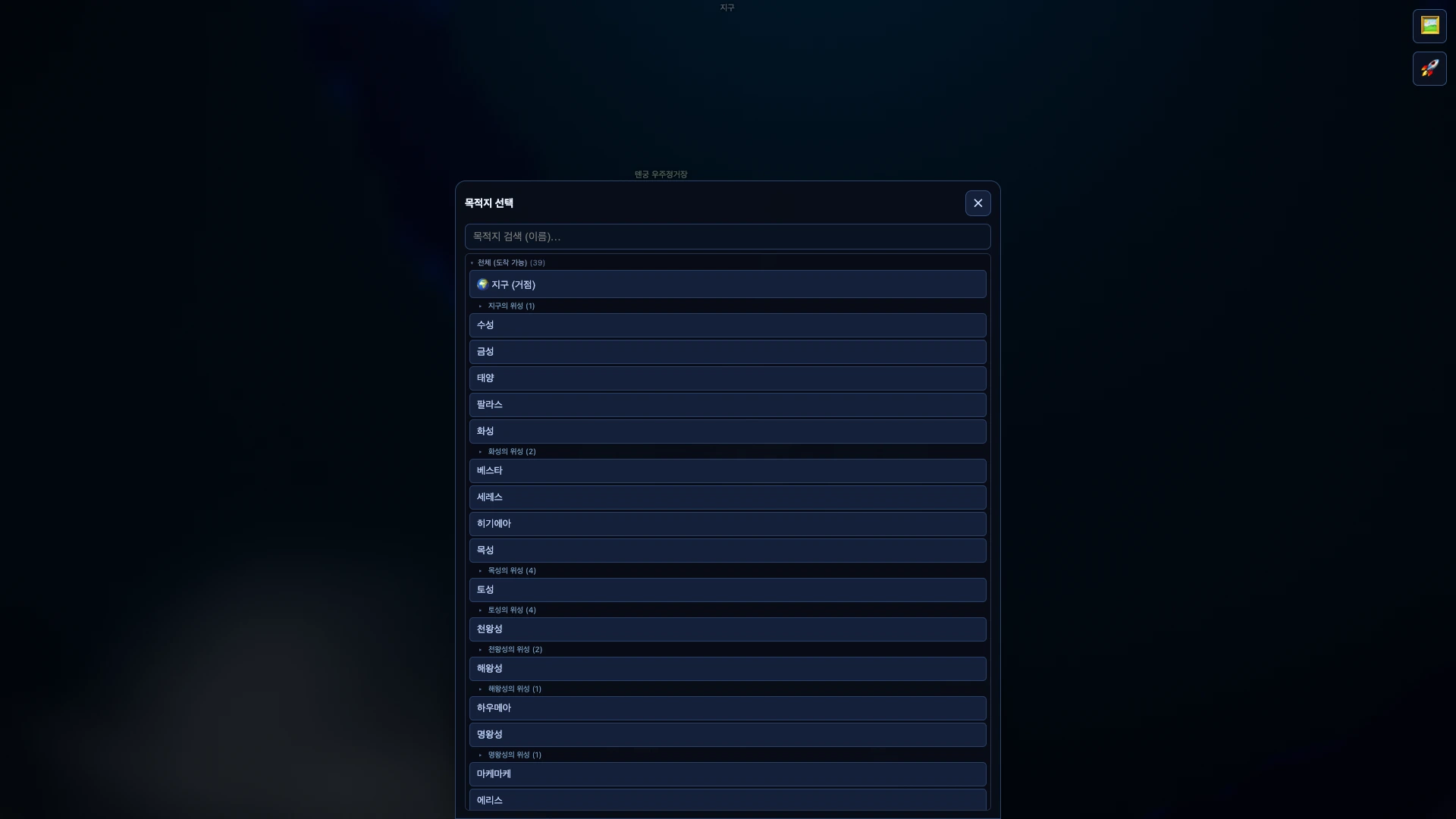
Tap the destination row (or ▾ change) to open the sheet. Search by name or collapse groups by tapping their headers. Tapping a row sets the destination and closes the sheet — then start the autopilot from the buttons below. You can pre-pick a destination while still docked.
Autopilot and the flight plan — reading the timeline
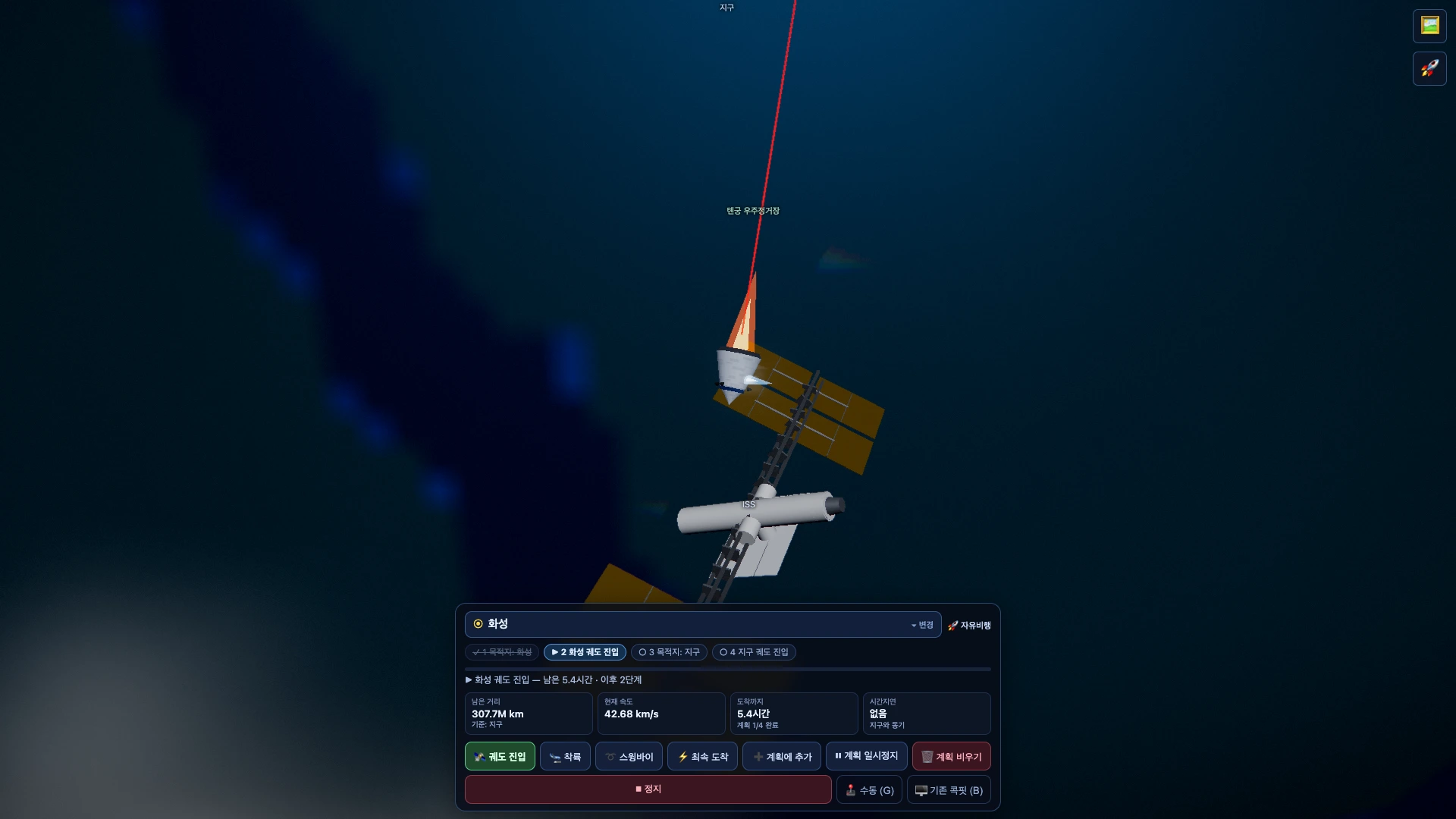
- For a single hop — pick a destination, then tap one of 🛰 Enter orbit · 🛬 Land · ➰ Swingby · 🎯 Rendezvous · ⚡ Fastest arrival. Only the buttons that apply to that destination type appear, so there is never a dead button (another star system offers ✦ Interstellar cruise — one-way, so it asks once more).
- To queue several legs — each tap of ➕ Add to plan appends a leg to the current destination. Change destination and keep adding ("Mars orbit → Earth orbit") and the server executes them in order even while you're away — this is the game's idle-voyage loop.
- Timeline chips — ✓ done (dimmed, struck through) · ▶ active (highlighted) · ○ pending · ✕ failed. Long plans scroll sideways. The progress bar and the "time left in this leg · n more" line always tell you where you are.
- Plan controls — ⏸ pause/▶ resume, 🗑 clear (confirms first), and ⏹ Stop to abort just the running maneuver.
Manual flight and the classic cockpit
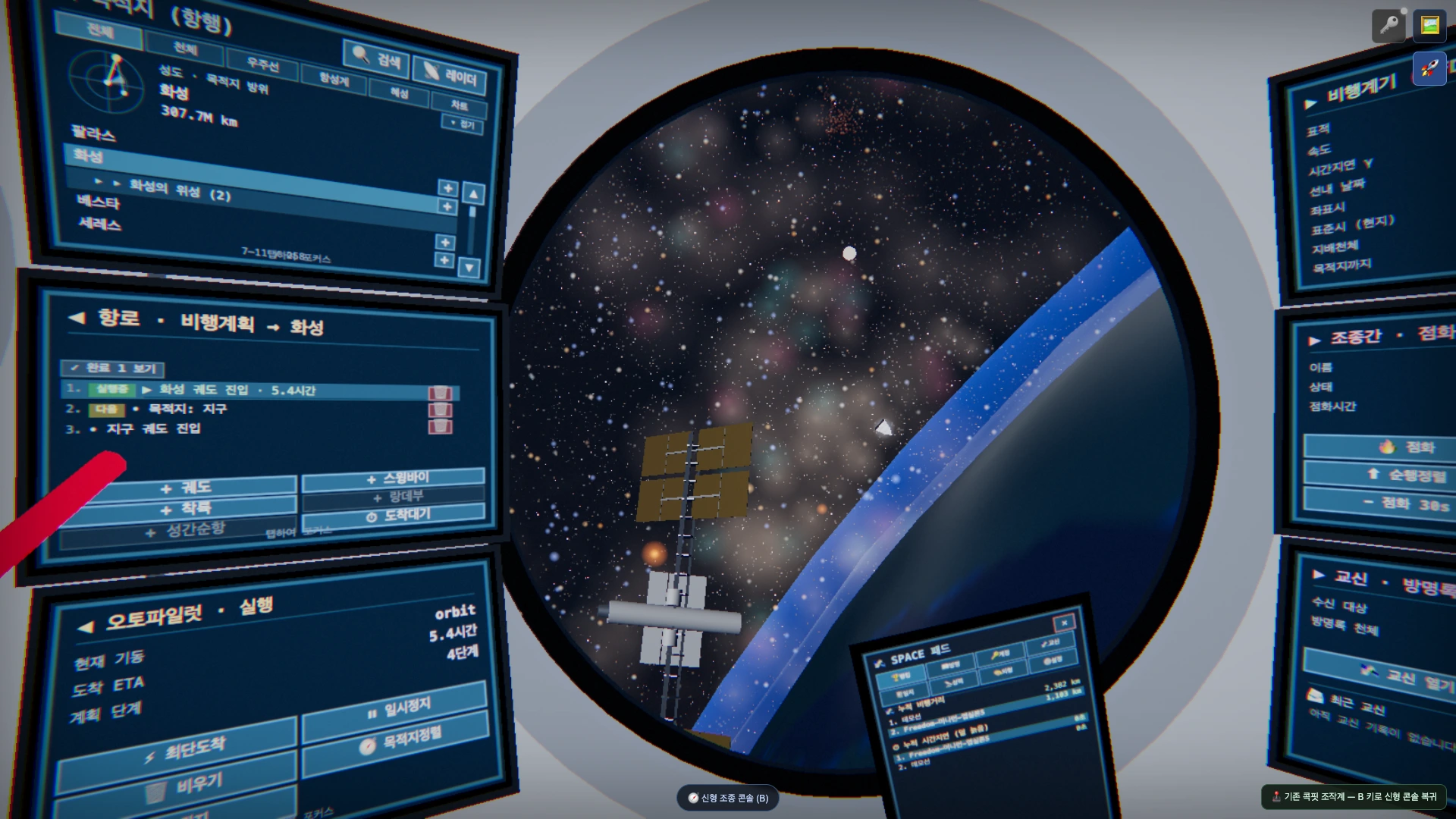
- Full manual flight — G (or the 🕹 button): attitude WASD/QE, throttle Shift/Z, cut X. The console folds to a slim strip while manual is engaged. Gamepad stick flight works as before — Guide · Gamepad.
- Prefer the classic cockpit? Switch with B and stay — everything below about the 6-panel monitors and the virtual iPad is its manual.
Spaceship External Controls
The external (third-person) view is a pure spectator camera that looks at the spaceship from outside. It has no buttons at all — all controls are inside the cockpit. The external view is great for taking in the scenery or capturing screenshots.
| Action | Input | Description |
|---|---|---|
| Look around / orbit | One-finger drag · mouse drag | Swings the camera around the spaceship. |
| Zoom | Two-finger pinch · mouse wheel | Closer/farther. Approach a body to see the detail. |
| Camera mode | C | Toggle third-person chase ↔ ship-centered. |
| Enter/exit cockpit | V · tap the external screen | First-person cockpit ↔ external view. Tapping anywhere on the external screen also returns you to the cockpit. |
| Screenshot mode | H | Hides all UI and trajectory guide lines, leaving a pure space scene. |
| Cosmology clock | U | In observable-universe regions, turns on a lookback-time / redshift / expansion HUD. |
?view=external to the URL
starts in the external view. You can even open the same spaceship in two URLs (?view=cockpit/external)
at once — one in first person, one in third person — and the two stay synced in real time.
For splitting each monitor and the iPad onto its own address, see → Multiview.Spaceship Internal Controls (Cockpit)
The cockpit (first person) is the only piloting interface. To the left and right of the round nose-cone window are three vertical panels each — six touchscreen panels in total, arranged so they don't block the window, plus a handheld virtual iPad. The left column is navigation (destination → route → execute), and the right column is status, piloting, and comms — so you can finish a given task with just one column. Frequently used operations like burns, alignment, planning, and radar are all built into these panels (there is no separate floating command bar).

How to work the monitors
- Tap = focus — tap a monitor and that screen comes forward to face you.
- Arrow keys / WASD — move between screens while focused. ←/A=left column, →/D=right column, ↑/W·↓/S=move rows.
- Swipe — a horizontal swipe switches left ↔ right column; a vertical swipe moves up/down rows within the same column.
- List scroll — screens with lists scroll by vertical drag (also via ▲▼ rail / wheel).
- Esc — release focus (back to the full cockpit view).
In practice — tap a monitor to bring it face-on
Tapping a monitor enlarges that panel to face the seat so its text and buttons become crisp. Below are the ① Destination and ⑤ Helm panels, each focused, as captured in-game.
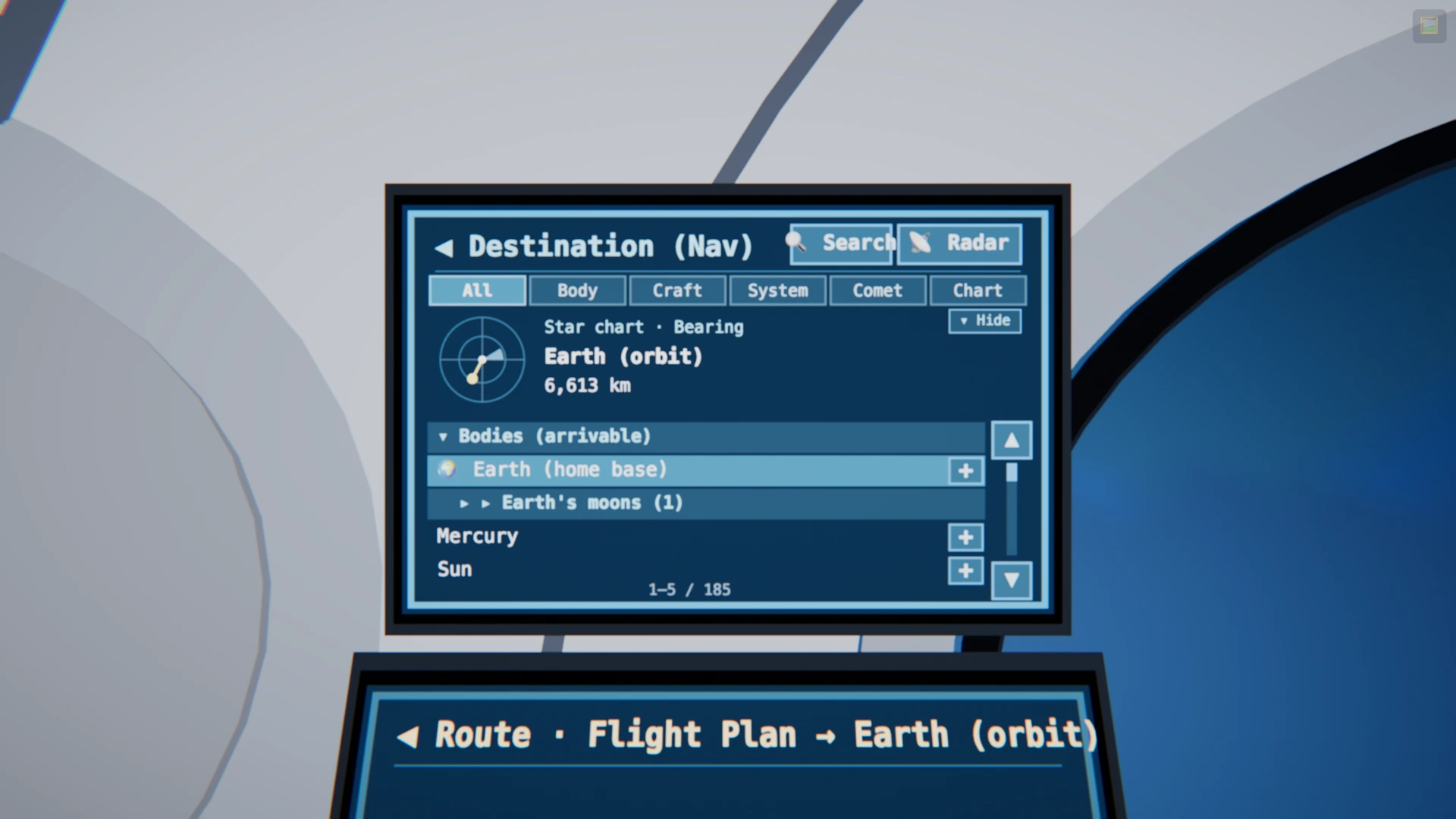
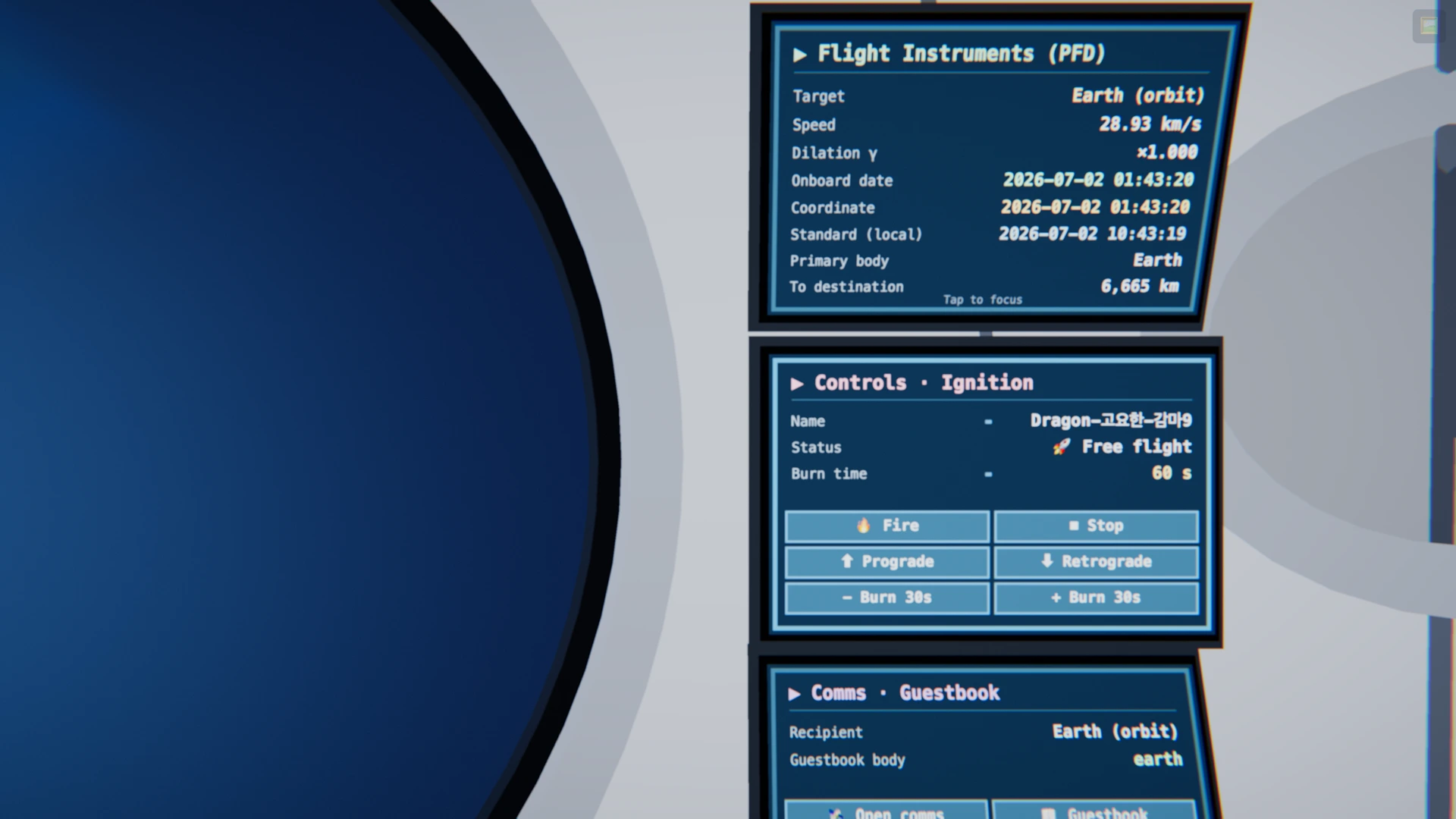
Roles of the 6 panels (left: navigation · right: status, piloting, comms)
The design principle is self-containment: finish a given task with just one column. The left three panels handle navigation (pick a destination → plan a route → execute), and the right three panels handle check flight status → direct piloting → comms, each top-to-bottom.
Destination-bearing dial (star chart), a destination list sorted by distance, 🔍 search, and the header's 📡 radar instant scan. Tap a body to "arm target"; the inline + chip at the end of each row adds it to the route with the maneuver that fits.
Target (currently armed target, orange during a burn) · speed · γ (gamma) · onboard date · coordinate time · standard time · dominant body · distance to destination. A heads-up screen with no buttons.
Use ➕ to schedule the current destination as a step — orbit · gravity assist · landing · rendezvous · interstellar cruise · ⏱ arrival hold. The route you've laid out stacks up as queue cards.
🔥 burn / 🚀 separate / 🛫 lift off · ⏹ stop · ⬆ prograde align / ⬇ retrograde align · burn time ± · name & status. The "press it yourself" manual controls gathered here.
⚡ fastest arrival · ▶/⏸ plan · 🗑 clear · 🧭 align to destination · ⏹ stop. Shows the current maneuver · arrival ETA · number of plan steps. The left column completes navigation right here (pick → plan → execute).
🛰 open comms (emoji transmit · 🛟 drop beacon) · 📖 guestbook · nearby (100km) ship & beacon registers. The right column completes status → piloting → comms.
Where the frequently used controls live
Even the urgent, frequently used actions are all inside the panels, so you finish within reach without moving screens — once you've just picked a target in ① Destination, the inline + chip right there adds it straight to the route with the maneuver that fits. Below is which panel each action lives in.
Virtual iPad
The modal features summoned by context (rankings · guestbook · account · comms) are unified into a single handheld portable tablet. Normally it's stowed on your lap; press T and it rises to reading distance in front of the seat, and ✕ or T puts it away again.
🏆 Rankings
Racing/voyage leaderboards (read-only).
📖 Guestbook
Records and stamps from bodies you've visited — leave an emoji and an intent.
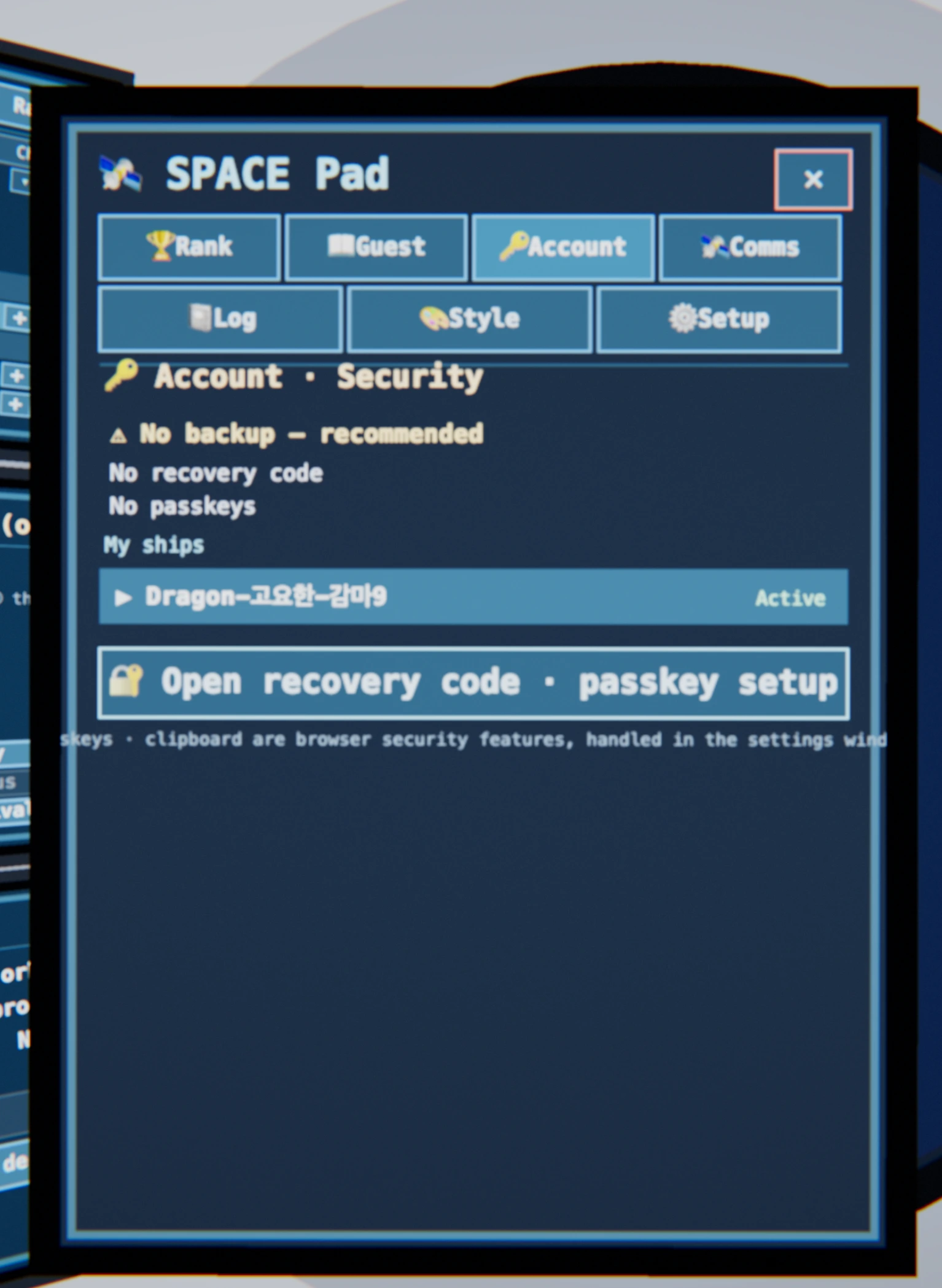
🔑 Account · Login
Display/copy recovery code, register/delete passkey, multi-ship switcher.
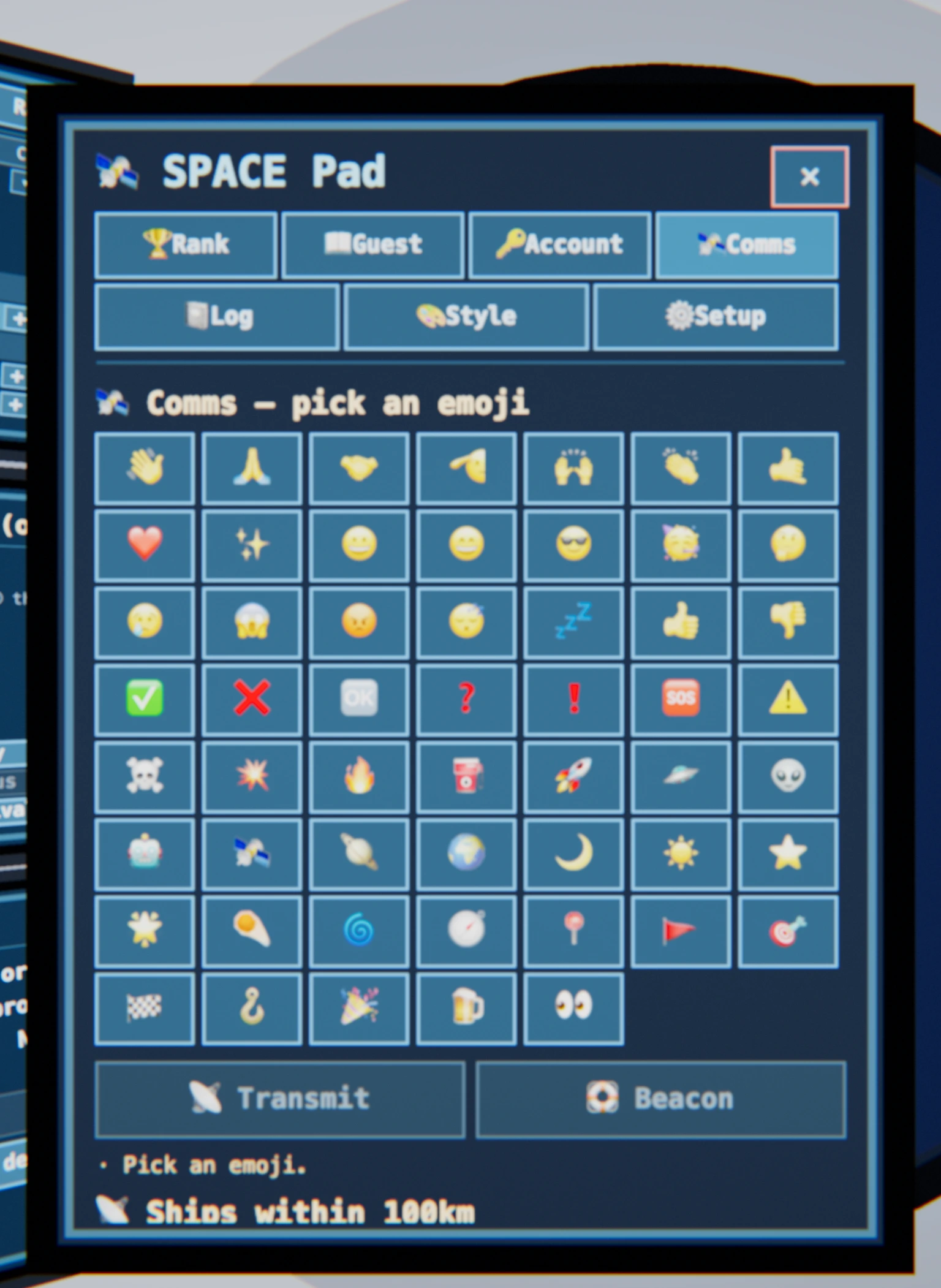
🛰 Comms
Pick one emoji and transmit it omnidirectionally to everyone nearby, or leave it as a permanent beacon at your spot.
📓 Log
This ship's voyage log — visits, burns, and dockings in chronological order.
🎨 Style
Choose the hull shape and engine-flame colour (applies instantly · other ships see it too).
⚙️ Settings
Audio · controller · notifications · graphics options, all in one place (see Settings).
In practice — the tablet's 7 apps
Press T to raise the tablet, then switch apps from the tab bar at the top — 🏆 Rankings · 📖 Guestbook · 🔑 Account · 🛰 Comms · 📓 Log · 🎨 Style · ⚙️ Settings. The screen taps and scrolls just like a cockpit monitor, and the top-right ✕ or T puts it away. Below is each app in-game.
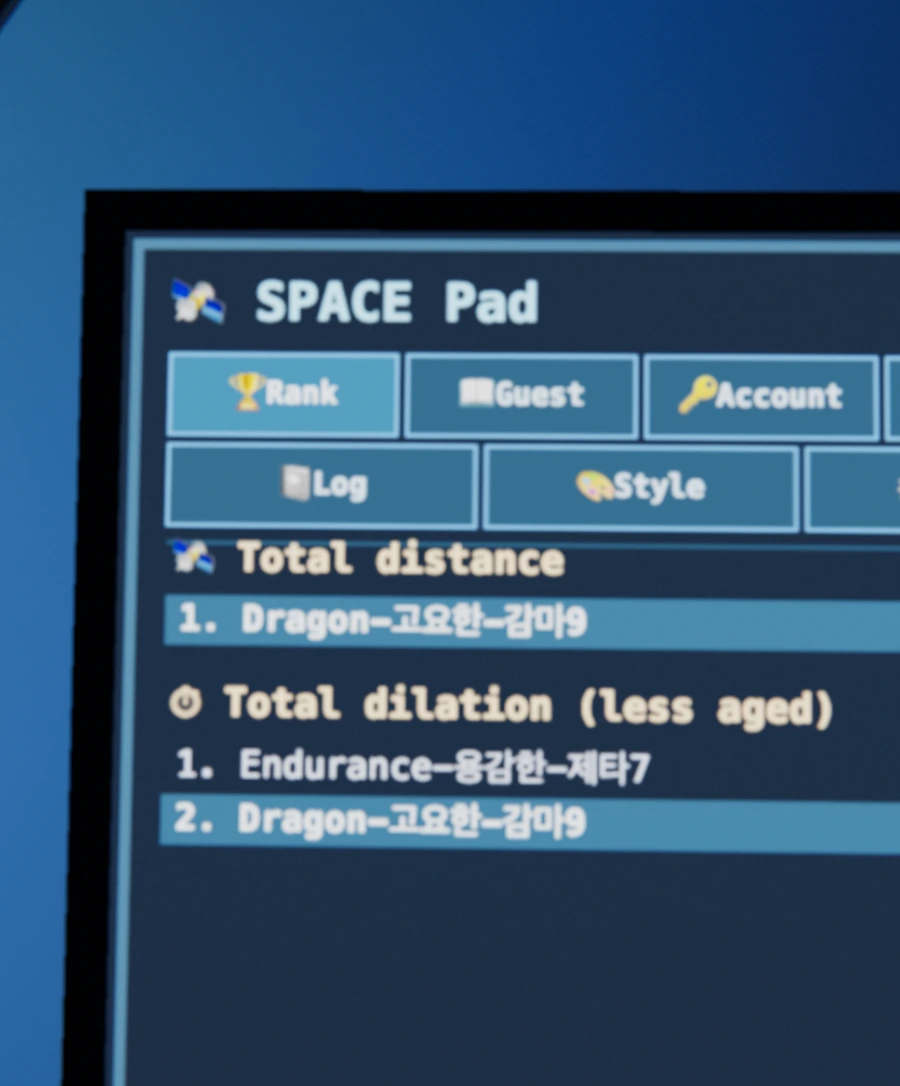
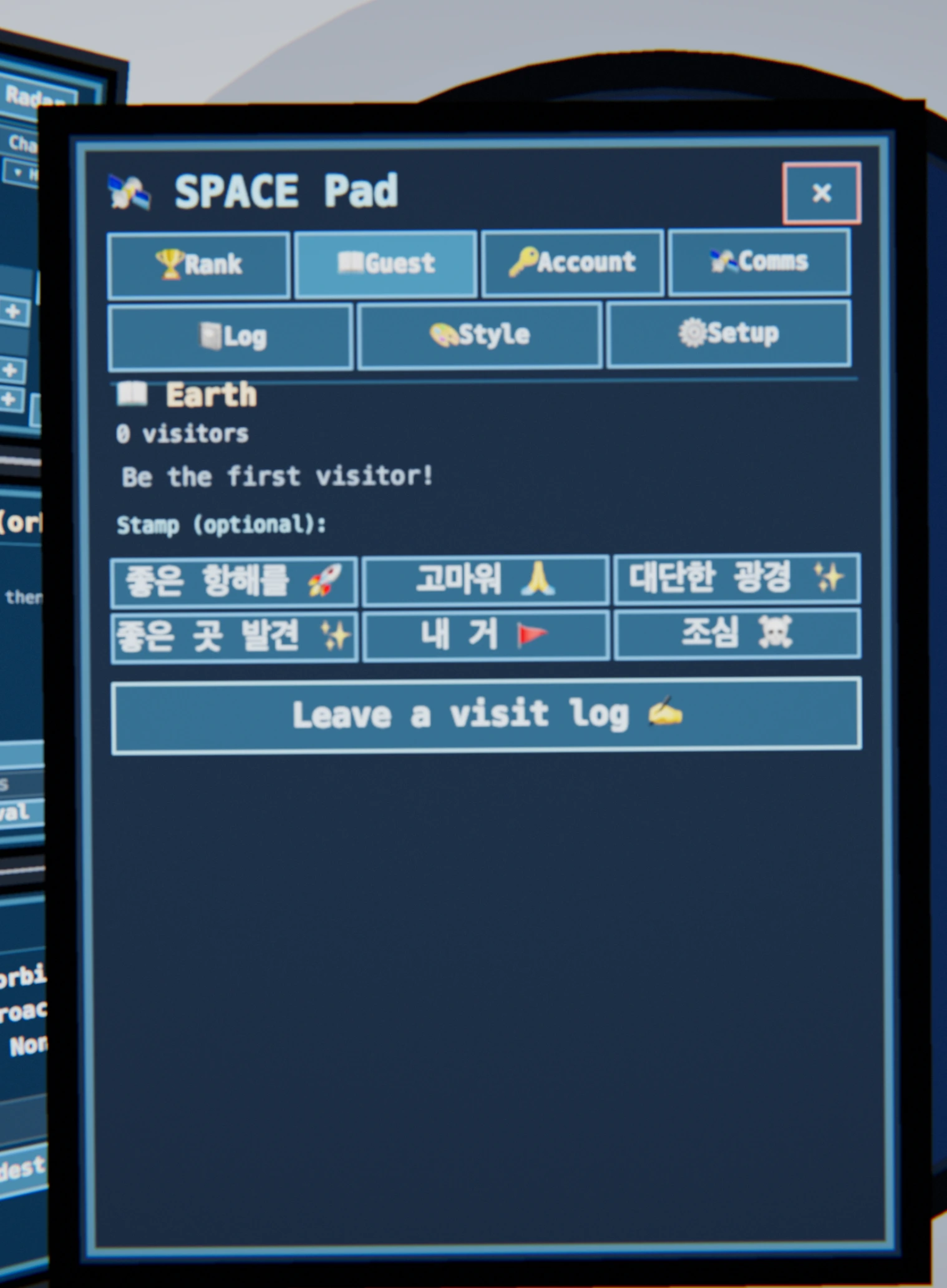
⚙️ Settings — audio · controller · notifications · graphics
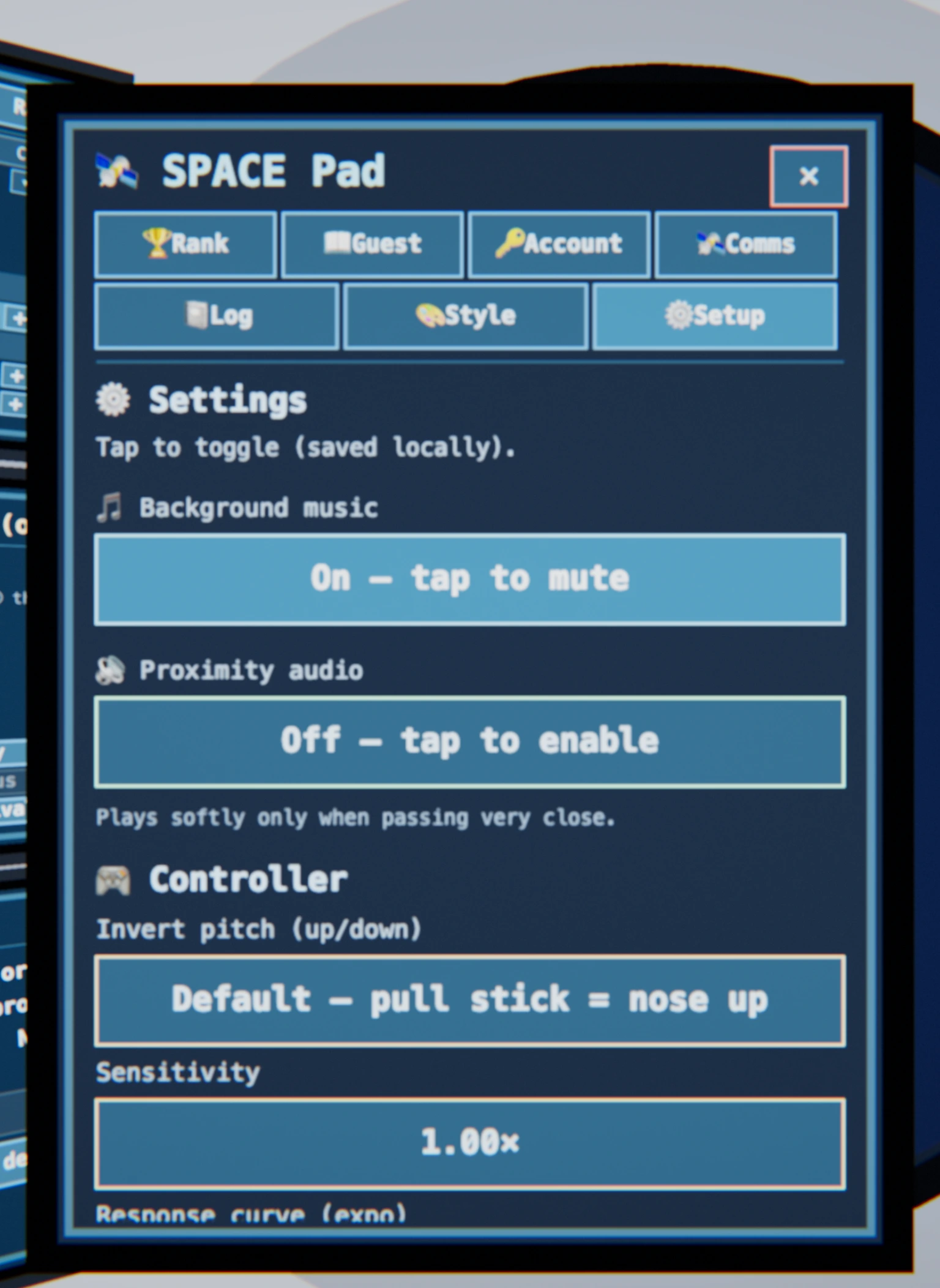
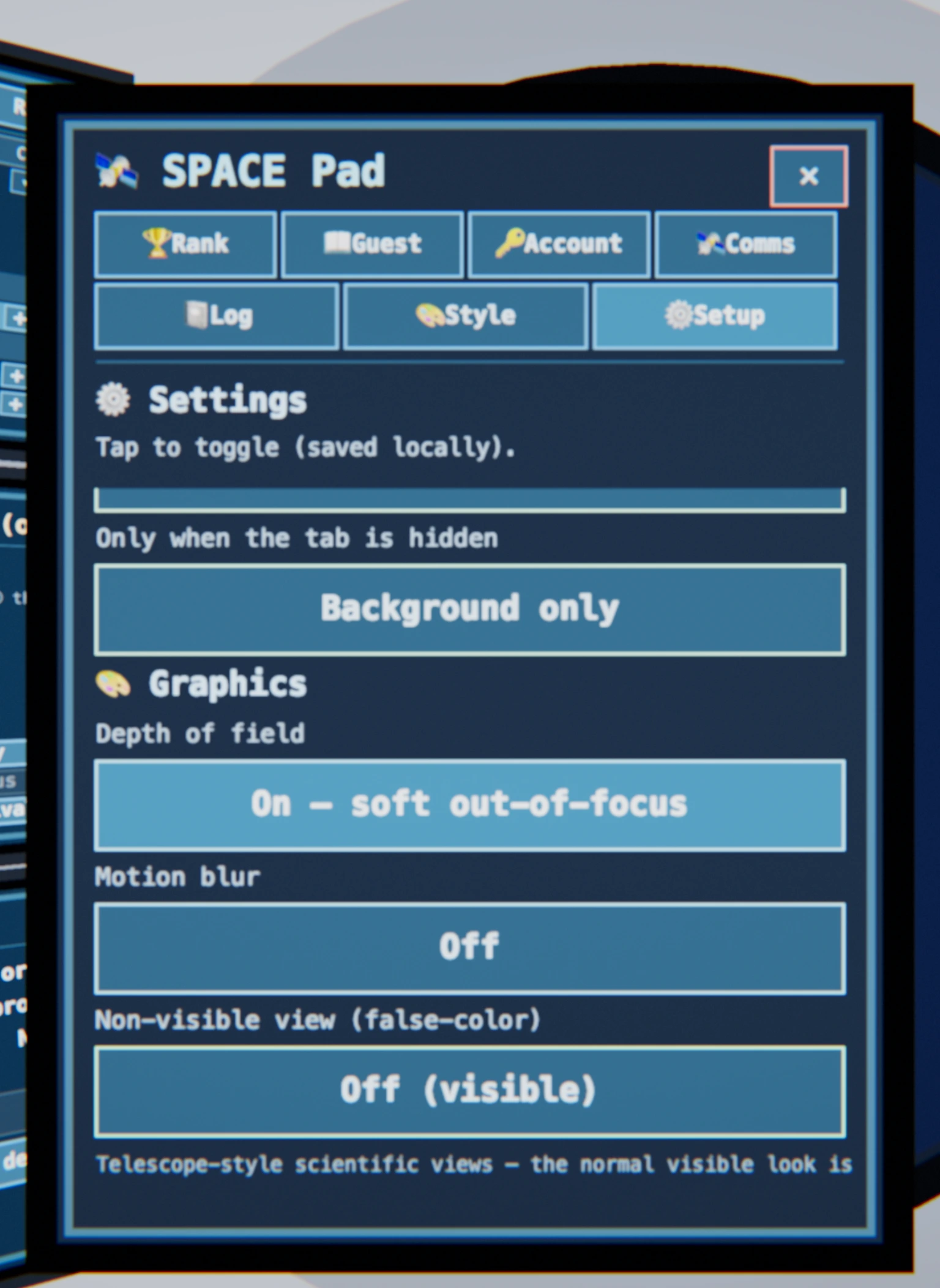
Every preference lives in the tablet's ⚙️ Settings tab. Tap an item to toggle it; your choices are saved locally in this browser (display/input tastes that aren't synced to the server or other devices). The list runs past one screen, so it scrolls vertically.
🔊 Audio
Background music and proximity audio (a soft cue only when you pass very close). Tapping also unlocks audio.
🎮 Controller
Gamepad feel — invert pitch · sensitivity · response curve · deadzone · haptics (rumble on arrival/impact). → Gamepad controls
🔔 Notifications
While the tab is in the background, get arrival · plan-done · approach alerts as browser notifications. Asks permission the first time.
🎨 Graphics
Depth of field (DoF) · motion blur · false-color view (thermal·IR / narrowband SHO). The normal visible look is unchanged — telescope-style scientific options.
Spread it across screens — Multiview
You can open the same ship at several web addresses at once. The exterior view, the cockpit, each of the six monitors, and the virtual iPad each have their own address, so you can keep a different screen in every window or tab (or on separate devices/displays) and watch them together. Every screen stays synced in real time through the server — undock, burn, or change destination on one and the rest update instantly (the server is authoritative; each screen just draws the one same ship from its own viewpoint).
The address for each screen
Every address hangs off the game path /play. A ?panel= address opens that monitor
as a face-on close-up (forcing first-person), and also accepts the numbers
0–5 in place of the alias (Destination=0 … Comms=5).
| Screen | Address | What |
|---|---|---|
| Ship exterior | /play?view=external | Third-person spectator camera (no controls). |
| Cockpit (full) | /play?view=cockpit | First-person cockpit — all six panels. |
| ① Destination | /play?panel=dest | Star chart · list · search · radar. |
| ② Route | /play?panel=plan | Flight-plan queue (CDU). |
| ③ Autopilot | /play?panel=autopilot | Queue execution · arrival ETA. |
| ④ PFD instruments | /play?panel=pfd | Speed · γ · clocks (read-only). |
| ⑤ Helm | /play?panel=controls | Burn · align manual controls. |
| ⑥ Comms · guestbook | /play?panel=comms | Comms · guestbook. |
| Virtual iPad | /play?panel=pad | Rankings · guestbook · account · comms · log · style · settings apps. |
How they stay in sync
- Multiple tabs/windows in the same browser — automatically the same ship (they share the ownership token). Just open the addresses above in new tabs.
- A different device or browser — log in to the same ship on each (enter your recovery code or use a passkey), then open the address. → Login · ship backup
- Each screen only draws its own viewpoint, but you can act from any of them — the server sends everyone the same snapshot.
?view=external, the instruments on a side screen with ?panel=pfd, and the helm on a
tablet/phone with ?panel=controls — a real mission-control wall. To open on another device, type
the site domain in front, e.g. space.woojinkim.org/play?panel=pfd.Keyboard shortcuts
| Key | Action | Notes |
|---|---|---|
| V | Toggle first-person cockpit ↔ external view | You can also return via the external screen tab |
| C | Camera mode (third-person chase ↔ ship-centered) | |
| H | Hide all UI (screenshot mode) | Hides the trajectory guide lines too |
| T | Summon / dismiss the virtual iPad | Only inside the cockpit |
| U | Toggle the cosmology clock | Lookback / redshift / expansion HUD |
| G | Toggle full manual flight | When on, WASD·arrows = attitude · QE = roll · ShiftZ = throttle · X = cut (a gamepad enters it automatically via the sticks) |
| ←→↑↓ · WASD | Move between cockpit monitors | Left/right = columns, up/down = rows |
| Esc | Release monitor focus | |
| P | Performance (FPS) meter | For development |
e.code),
so they work even while Korean input is active.