SPACE Navigation Guide
A server-authoritative navigation simulation that lets you drift through space under real physics, right in your browser. This single page holds everything about the game — how to start, how to handle your spacecraft, places worth visiting, and the real physics that drives this universe. Jump straight to whatever you need from the table of contents on the left.
About the Game
SPACE is a game where you fly through, in person, a universe you'd otherwise only see in photographs. You wake up in a Crew Dragon capsule docked to the International Space Station (ISS), undock, cross the solar system past planets, comets, and probes, and finally leave the solar system behind for real, measured nearby star systems, and onward to black holes and the edge of the observable universe.
The heart of it is real scale and real physics. Celestial positions are computed from measured orbital elements (J2000), gravity is summed N-body, and speed can never exceed the speed of light. The faster you fly, the slower your clock runs compared to the outside world (relativistic time dilation), and other spacecraft always appear as they were in the past, by exactly the time it took light to reach you.
🪐 Server-Authoritative Simulation
All physics, celestial, and spacecraft calculations are handled by the server. The screen merely draws the result — everyone shares one and the same universe.
🔓 No Login Required
A spacecraft is created the moment you connect. No sign-up, no email; if you like, you can choose a backup method later.
🌌 True Scale
From the kilometers of the solar system to the light-years of star systems and the megaparsecs beyond the galaxy — the units flow on without a break.
📱 Mobile / Desktop
Both touch and mouse are supported. Designed for an idle rhythm where you drop in every few days just to set a course.
Purpose · What You Do
SPACE has no "end you must win." Instead, the goal is to feel the true size and time of the universe. What players actually do is simple — drop in and ① see where you are right now, ② decide which way to head, and ③ try to make contact with someone. These three beats are the game's rhythm.
Here's What You'll Experience
- Real-scale spaceflight — fly past the canyons of Mars, Jupiter's Great Red Spot, Saturn's rings, and probes like Voyager in person.
- Black holes and time dilation — experience extreme gravitational time dilation near an event horizon. In the brief moment you linger, thousands of years pass in the outside world.
- The twin paradox — fly close to the speed of light and your onboard clock slows. You can line up your elapsed time against another player's and compare them side by side.
- The loneliness and joy of light delay — distant spacecraft appear only as ghosts of the past, and an emoji you transmit spreads at the speed of light to whoever is near.
- Records and beacons — leave a guestbook entry on the bodies you visit, and drop emoji beacons in deep space for passing ships to find.
- The edge of the observable universe — read redshift, lookback time, and accelerating expansion on the HUD as you travel beyond 4.6 billion light-years.
Quick Start
In your first five minutes you can leave the ISS and set out on free flight. There are only 4 direct controls for your spacecraft (undock · set destination · accelerate · decelerate); the server physically handles the rest of the precision burns on its own.
- Connect — press Play ▶ on the home page and you start right away in a Dragon capsule docked to the ISS. It orbits Earth with a randomly assigned name. (You can rename it if you like.)
- Look around — the default view is the first-person cockpit. Drag the screen to look around. Tap a monitor and that screen comes forward to face you.
- Set a destination — from the star chart/list in the ① Destination
panel (top of the left navigation column), tap a target body to "arm" it (shown in the
Targetrow of the ④ PFD). Your spacecraft begins orienting toward that direction. - Undock from the ISS — undock at the ⑤ Flight Stick (center of the right column). The capsule inherits the ISS's orbital velocity as-is and switches to free flight (not by teleport, but physically).
- Burn (accelerate) — use 🔥 Burn on the ⑤ Flight Stick to thrust in the nose direction. Watch your orbit physically stretch out.
- Arrival · deceleration — as you approach the target SOI, brake with deceleration (a "flip and burn" that flips your attitude 180°), or schedule an orbit insertion, gravity assist, or rendezvous in the ② Route panel (center of the left column).
🚀 First-Flight Tutorial — From the ISS, via the Moon, to Mars
On your first connection you start in a Dragon capsule docked to the International Space Station (ISS). This tutorial walks you, screen by screen, from there through undocking → targeting the Moon → entering lunar orbit → departing for Mars — showing exactly which cockpit buttons to press. Everything happens on the six monitors of the first-person cockpit (→ cockpit controls).
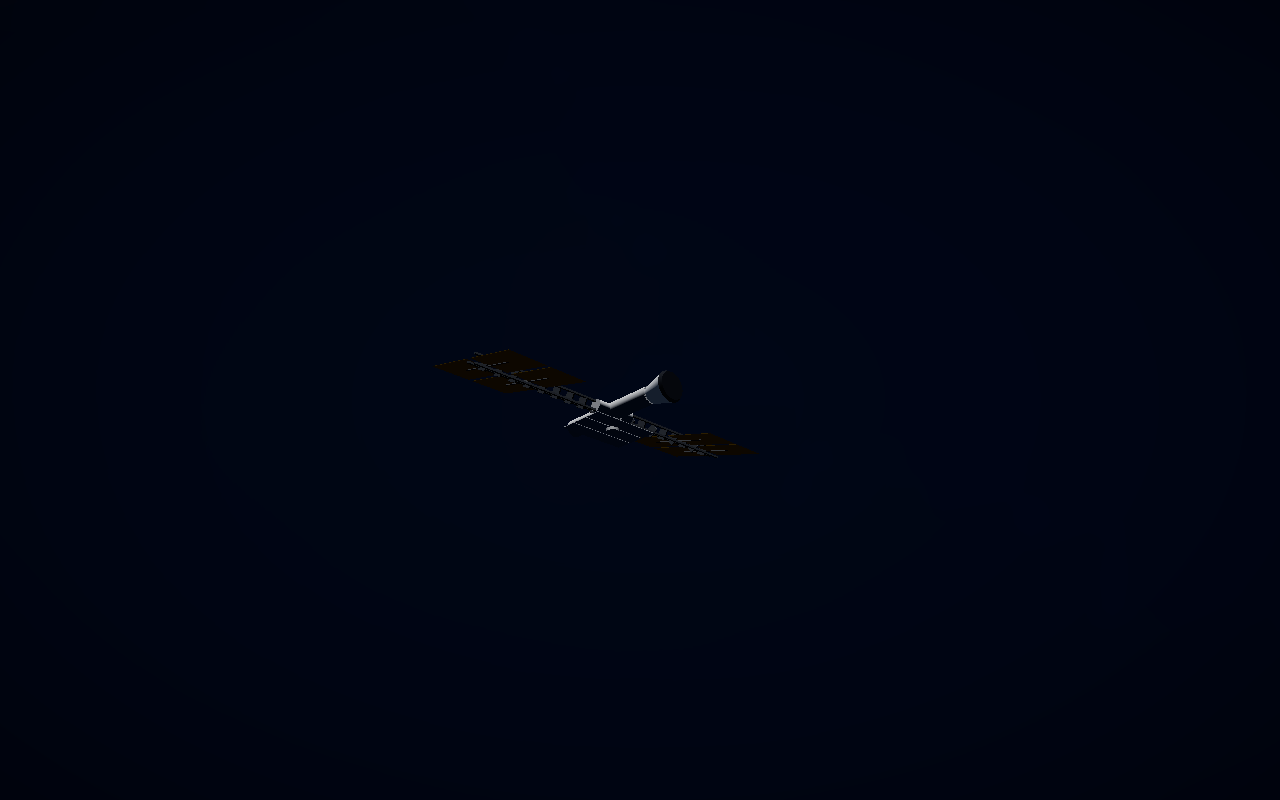
0. The starting point — a Dragon capsule docked to the ISS
The moment you connect, a spaceship is created for you, docked to the ISS in low Earth orbit. The default view is the first-person cockpit; press V to step out to the external (third-person) view and look around your ship.
1. Undock from the ISS
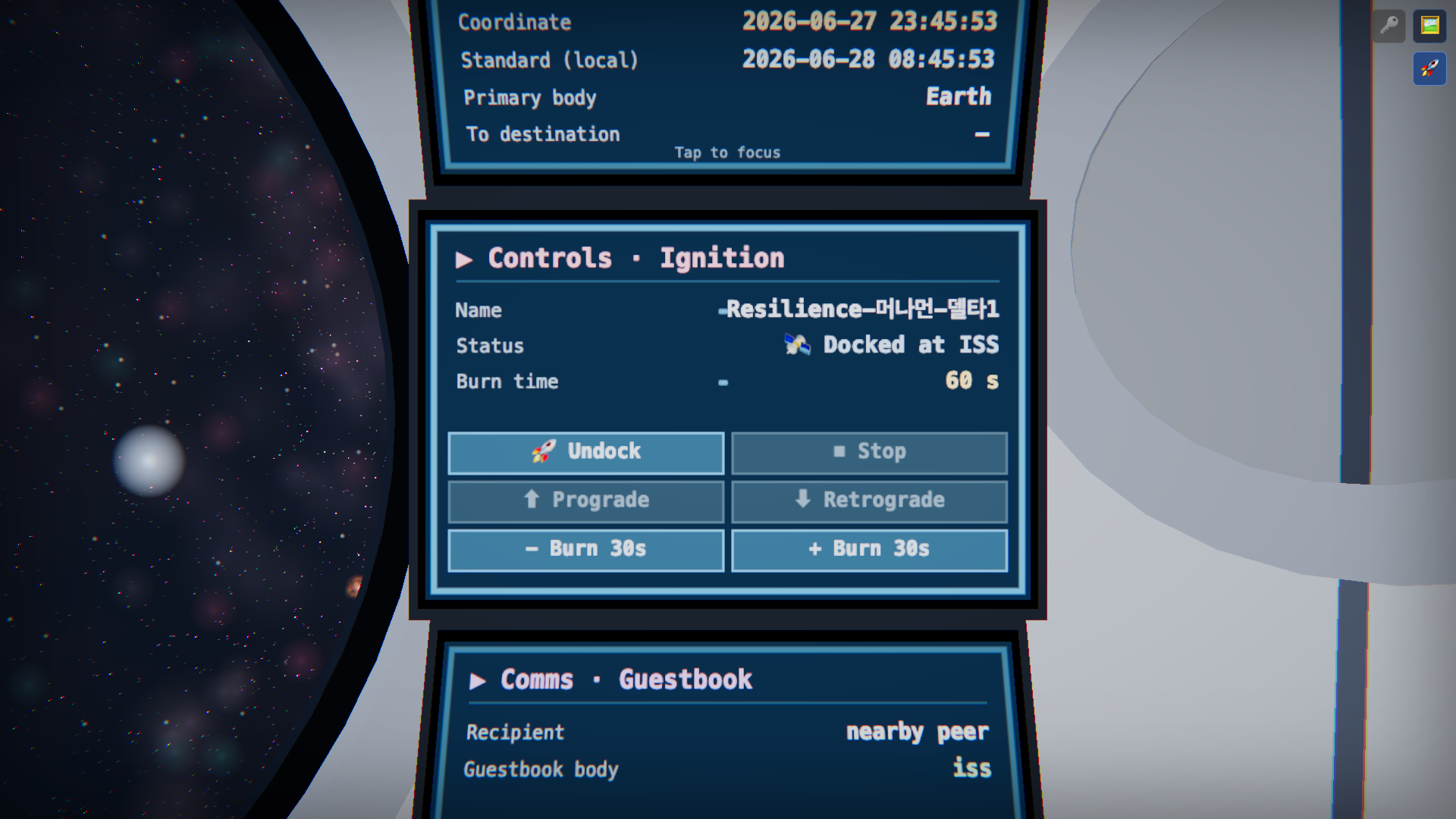
You have to separate from the ISS before free flight begins. In the cockpit, tap the ⑤ Controls · Ignition panel (center of the right column) to bring it face-on, then press 🚀 Undock.
2. Target the Moon
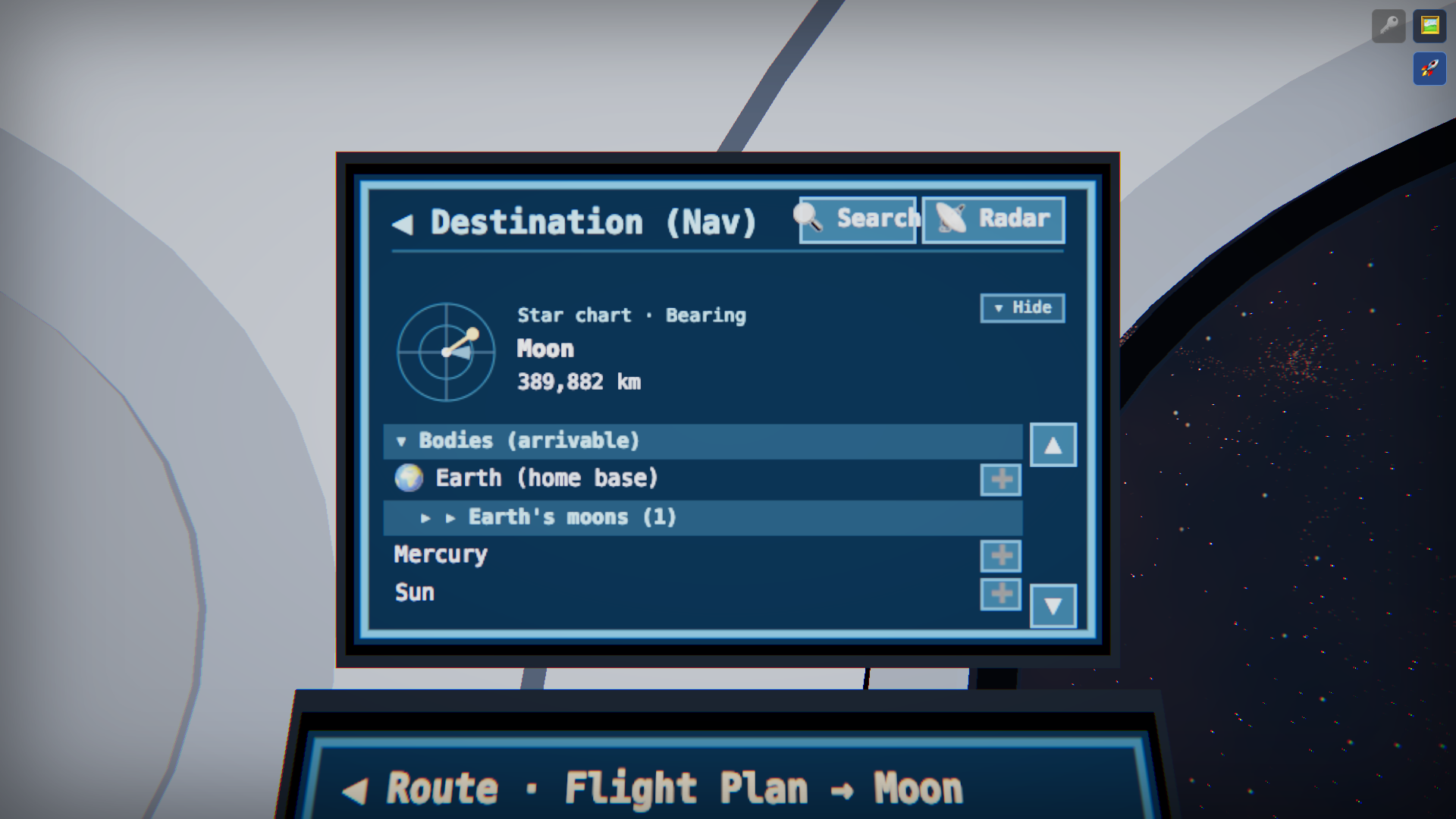
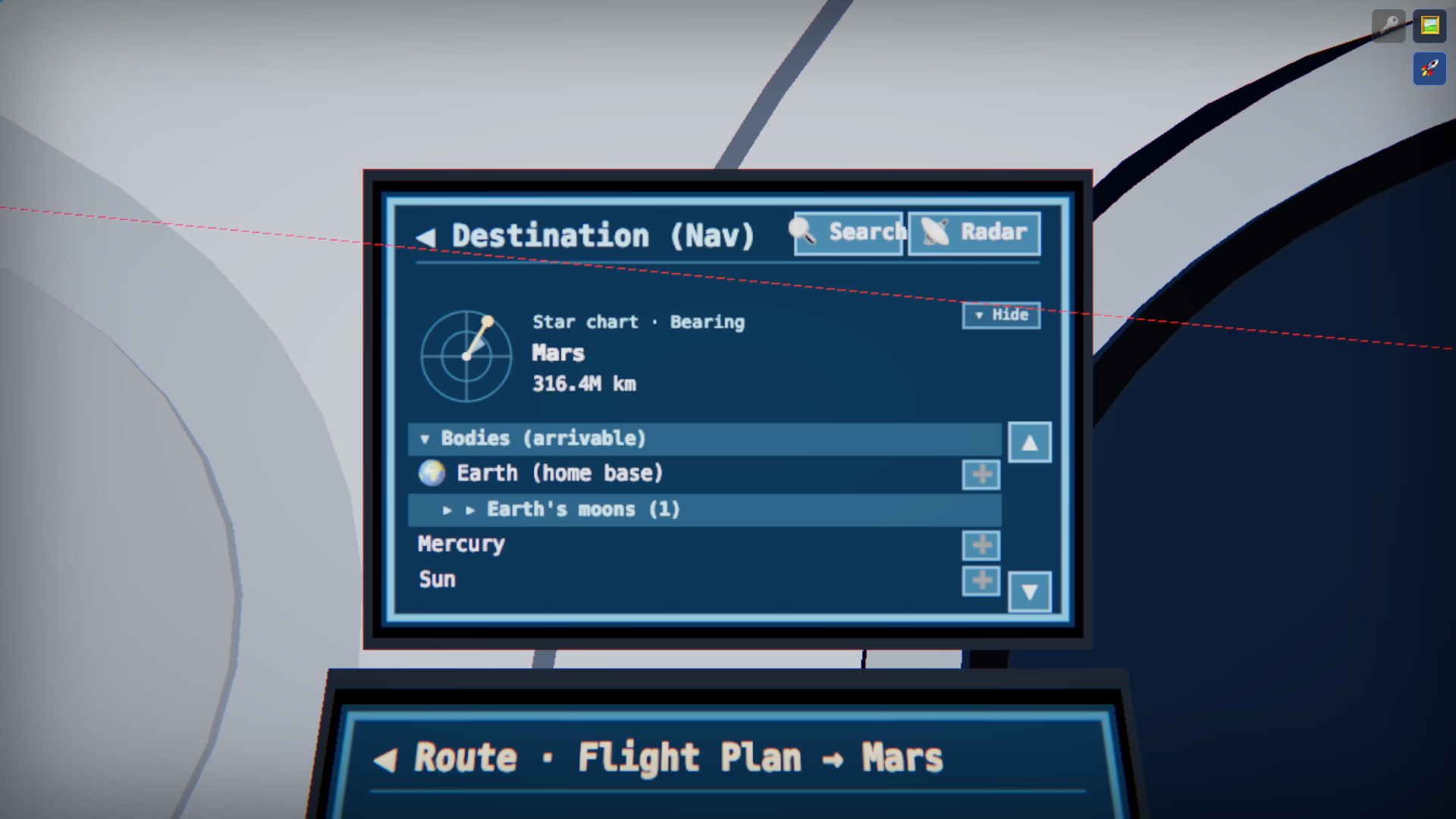
Tap the ① Destination (Nav) panel (top of the left column) to bring it face-on. In the body list, find Earth ▸ Earth's moons ▸ Moon and tap it to "arm" the Moon as your target. The compass dial at the top shows Moon with the current distance (about 380,000 km), and the ship starts turning to face it.
3. Queue a lunar orbit insertion
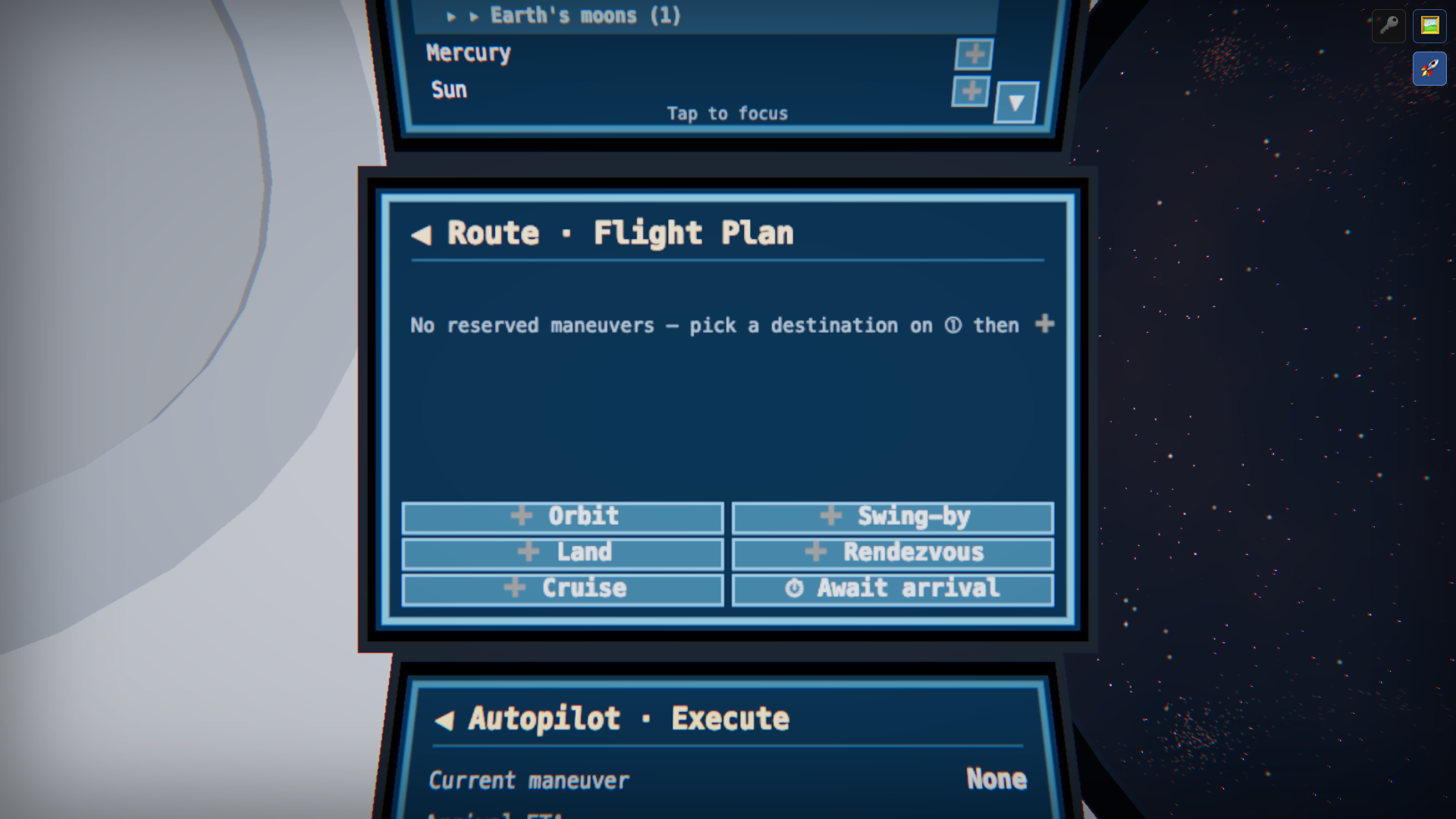
To actually enter orbit around the Moon rather than just fly past it, open the ② Route · Flight Plan panel (center of the left column) and press ➕ Orbit. That reserves a "lunar orbit insertion" as one step in the flight-plan queue.
4. Run the autopilot — under way to the Moon
Once a step is in the plan, the ③ Autopilot · Execute panel (bottom of the left column) starts running it automatically. The ship turns and burns toward the Moon on its own, and the arrival ETA and current maneuver are displayed. (No rush — you can leave it and come back days later; this is an idle voyage.)
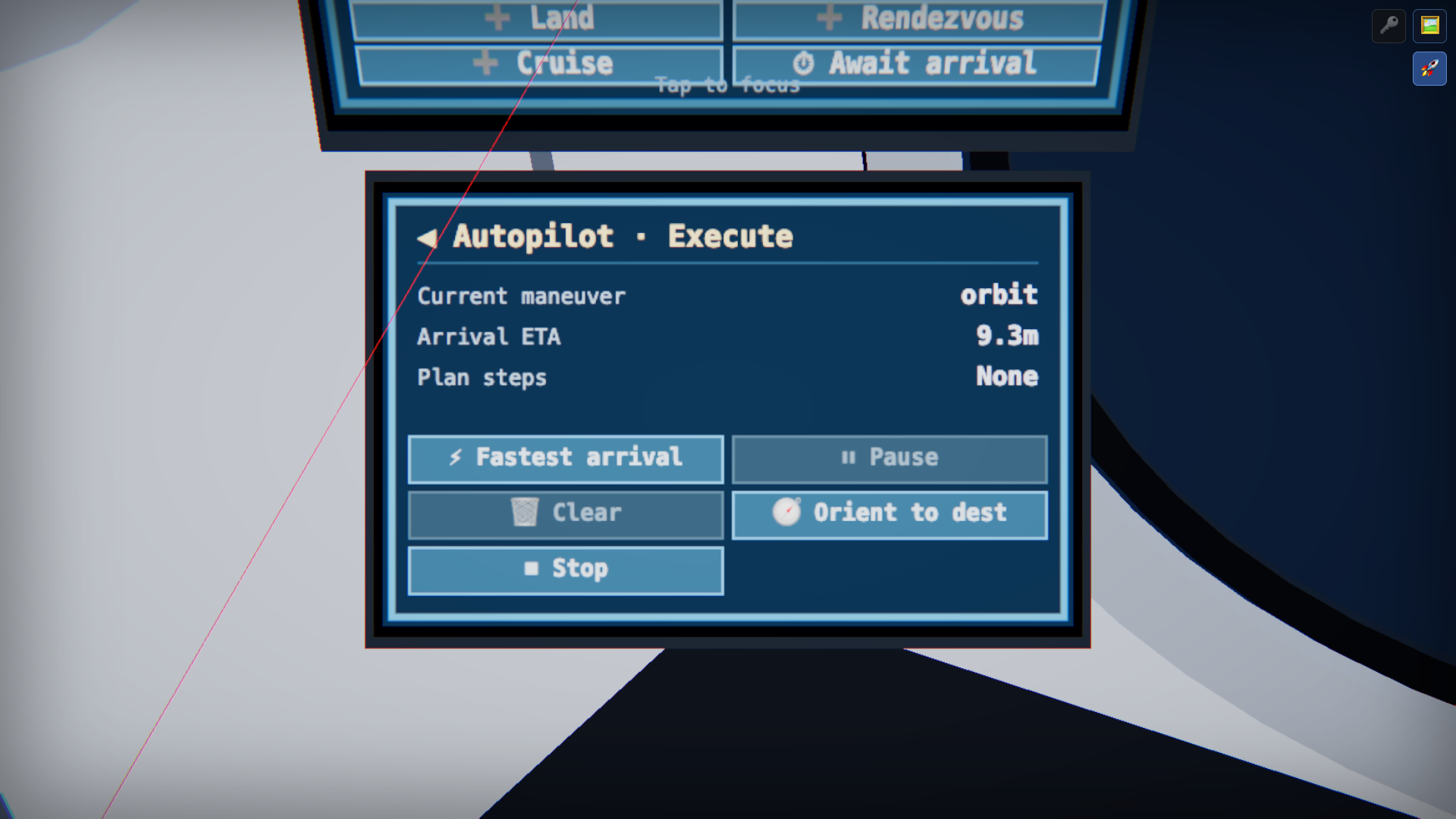
5. Arriving in lunar orbit
When the approach finishes, the ship settles into a circular orbit around the Moon. Press V for the external view to see the capsule circling the cratered Moon up close.

6. Depart lunar orbit for Mars
Open the ① Destination panel again and tap Mars in the list. The compass shows Mars and the current distance (hundreds of millions of km). There are three ways to depart:
- ③ Autopilot → ⚡ Fastest arrival — leave lunar orbit and dash straight to Mars in the shortest fuel-free time (simplest).
- ② Route → ➕ Orbit — queue a Mars orbit insertion so you settle into orbit on arrival.
- ⑤ Controls → 🔥 Fire — accelerate manually and fly it yourself.
Login · Spaceship Backup
SPACE has no email, no password, and no sign-up. Ownership of your spaceship is bound to a secret token stored on your device when you connect. So on the same device and browser you return to the same spaceship next time without doing anything — and it creates no personal information.
Backup lets you load that spaceship on another device, or get it back if you lose your device. There are two ways — a recovery code and a passkey — and you can use either one, or both.
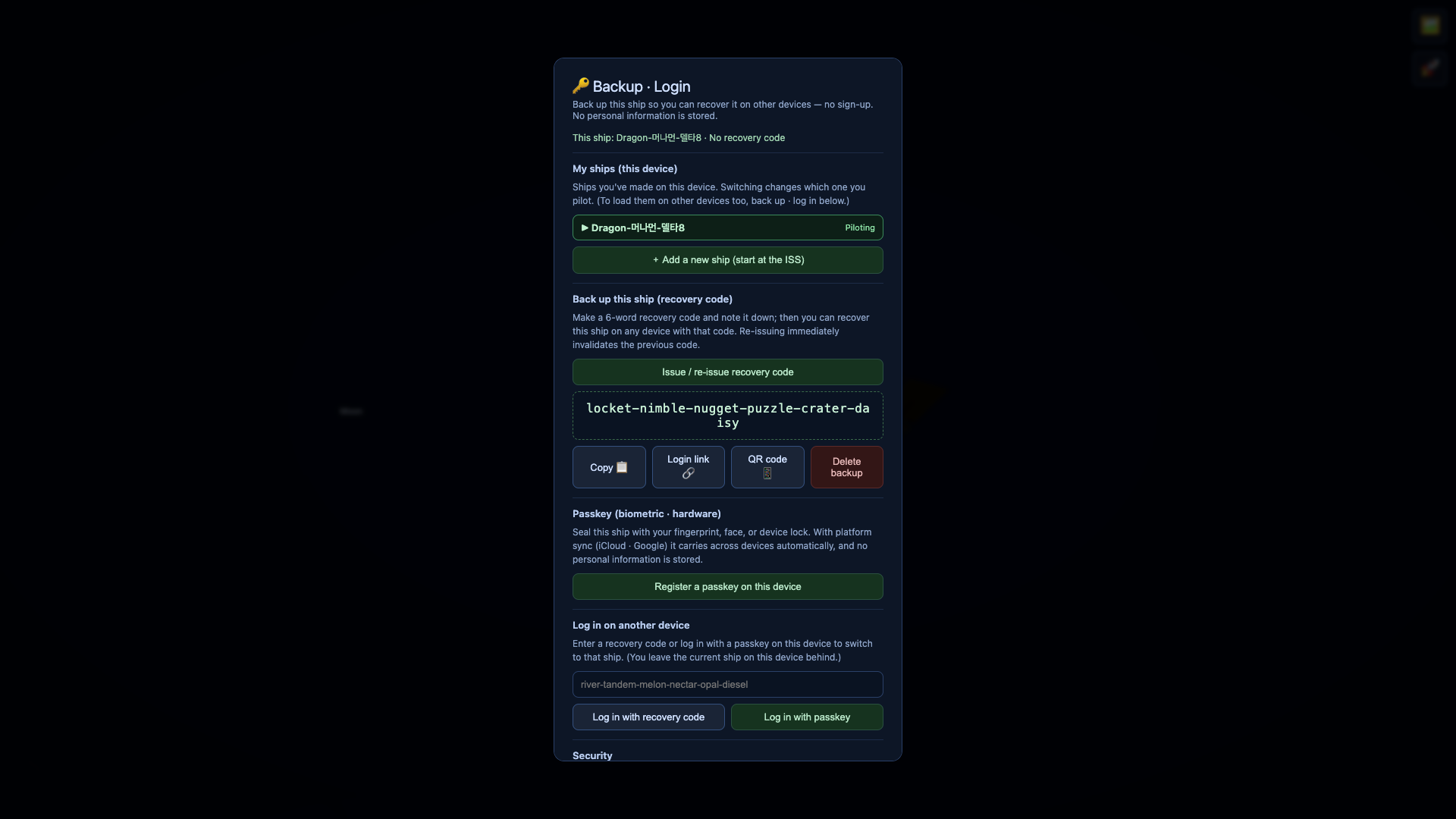
Opening the backup · login screen
- In the cockpit, press T to raise the virtual iPad.
- Open the 🔑 Account tab in the top tab bar.
- Tap 🔐 Open recovery code · passkey setup to unfold the backup · login screen below.
Method 1 — Recovery code (6 words)
- Tap Issue / re-issue recovery code and a 6-word code appears,
like
husky-jumbo-ripple-jasmine-monsoon-engine. - Use Copy 📋 to save it somewhere safe (a notes app, password manager, etc.). Or use Login link 🔗 to make a one-tap login link — it carries the same access as the code, so keep it to trusted places only.
- Type that code on another device to return to the spaceship. Re-issuing immediately invalidates the old code.
Method 2 — Passkey (fingerprint · face · device lock)
- Tap Register a passkey on this device and confirm with your fingerprint/face/PIN to seal this spaceship onto the device (WebAuthn).
- With platform sync (iCloud/Google), it carries over automatically to your other devices.
- Registered passkeys can be deleted individually from the list.
Logging in on another device
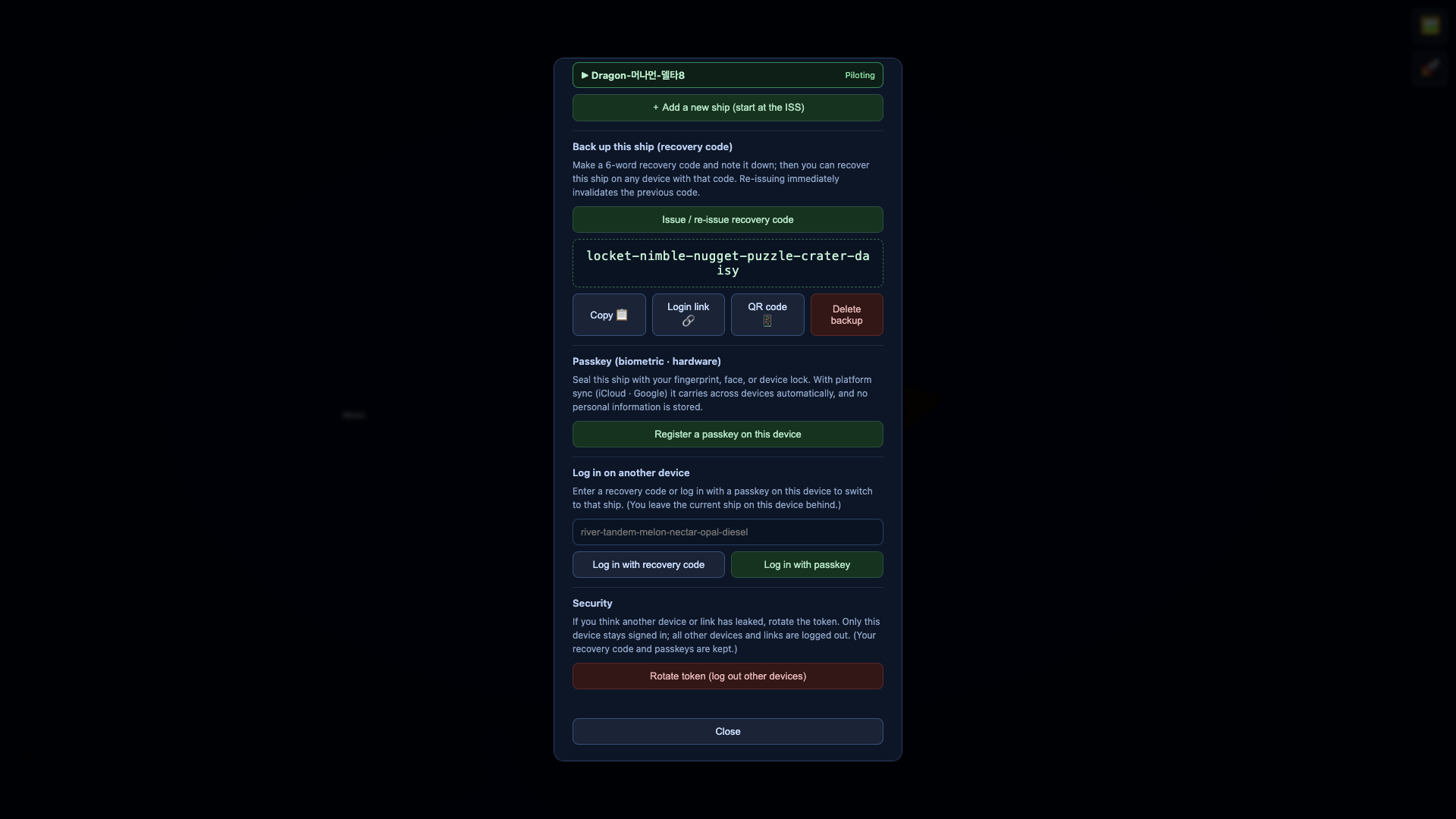
- On the new device, open the backup · login screen above (iPad → 🔑 Account → open setup).
- Paste your recovery code into the Log in on another device field and tap Log in with recovery code, or tap Log in with passkey.
- The helm switches to that spaceship. (The ship on this device is left behind — if you backed it up too, you can load it again anytime.)
Multiple ships · security
- Multiple ships — on one device you can make more ships with + Add a new ship and switch between them in the list. Back each one up and they carry across devices together.
- Token rotation — if you think a recovery code or login link leaked, rotate the token to keep only this device and log everything else out (your recovery code and passkeys are kept).
Spaceship External Controls
The external (third-person) view is a pure spectator camera that looks at the spaceship from outside. It has no buttons at all — all controls are inside the cockpit. The external view is great for taking in the scenery or capturing screenshots.
| Action | Input | Description |
|---|---|---|
| Look around / orbit | One-finger drag · mouse drag | Swings the camera around the spaceship. |
| Zoom | Two-finger pinch · mouse wheel | Closer/farther. Approach a body to see the detail. |
| Camera mode | C | Toggle third-person chase ↔ ship-centered. |
| Enter/exit cockpit | V · tap the external screen | First-person cockpit ↔ external view. Tapping anywhere on the external screen also returns you to the cockpit. |
| Screenshot mode | H | Hides all UI and trajectory guide lines, leaving a pure space scene. |
| Cosmology clock | U | In observable-universe regions, turns on a lookback-time / redshift / expansion HUD. |
?view=external to the URL
starts in the external view. You can even open the same spaceship in two URLs (?view=cockpit/external)
at once — one in first person, one in third person — and the two stay synced in real time.
For splitting each monitor and the iPad onto its own address, see → Multiview.Spaceship Internal Controls (Cockpit)
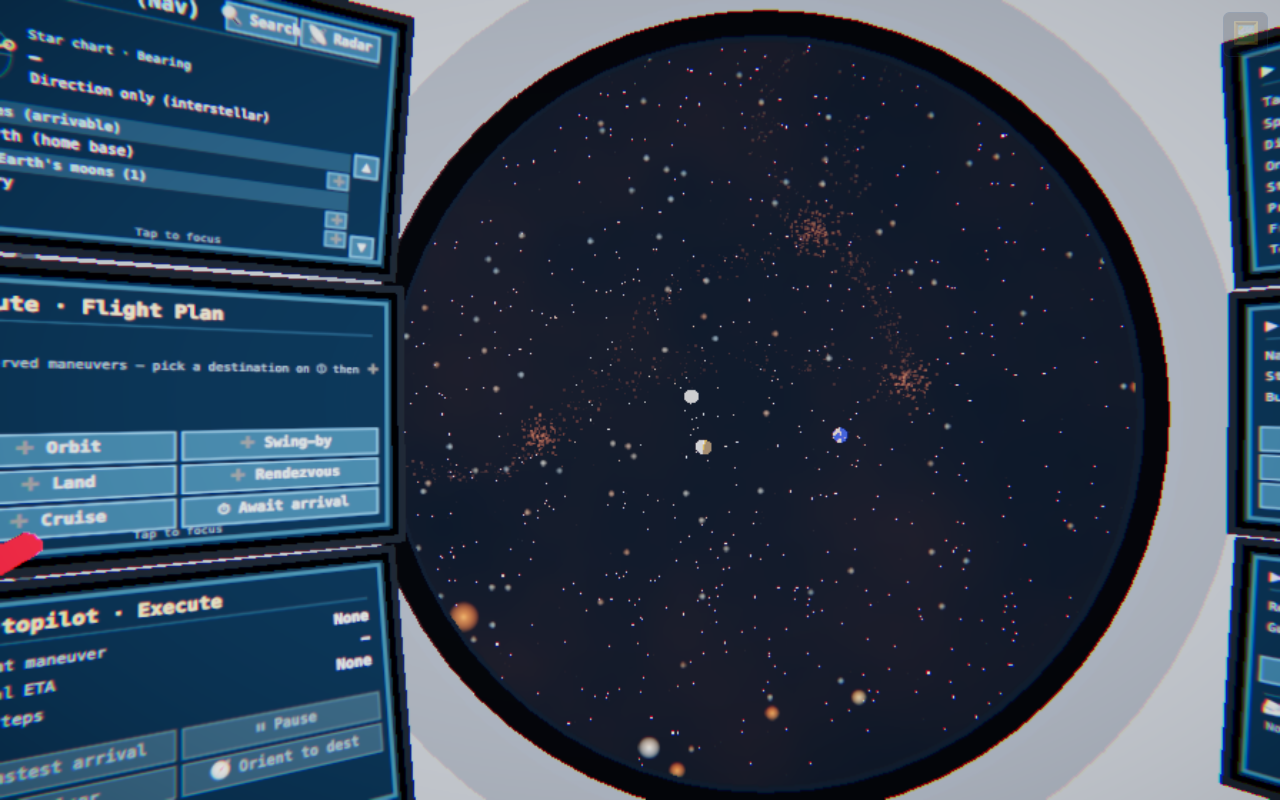
The cockpit (first person) is the only piloting interface. To the left and right of the round nose-cone window are three vertical panels each — six touchscreen panels in total, arranged so they don't block the window, plus a handheld virtual iPad. The left column is navigation (destination → route → execute), and the right column is status, piloting, and comms — so you can finish a given task with just one column. Frequently used operations like burns, alignment, planning, and radar are all built into these panels (there is no separate floating command bar).
How to work the monitors
- Tap = focus — tap a monitor and that screen comes forward to face you.
- Arrow keys / WASD — move between screens while focused. ←/A=left column, →/D=right column, ↑/W·↓/S=move rows.
- Swipe — a horizontal swipe switches left ↔ right column; a vertical swipe moves up/down rows within the same column.
- List scroll — screens with lists scroll by vertical drag (also via ▲▼ rail / wheel).
- Esc — release focus (back to the full cockpit view).
In practice — tap a monitor to bring it face-on
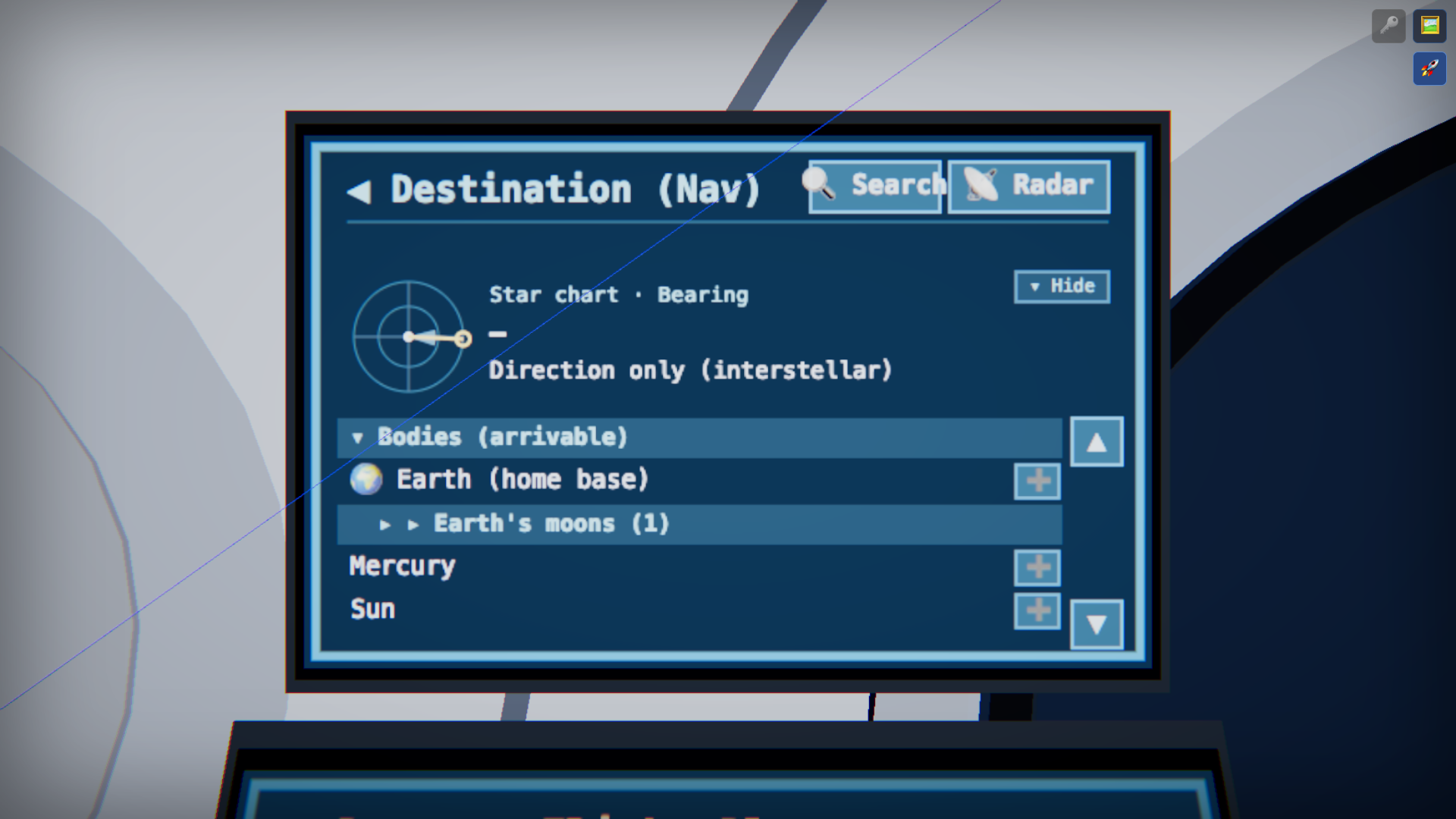
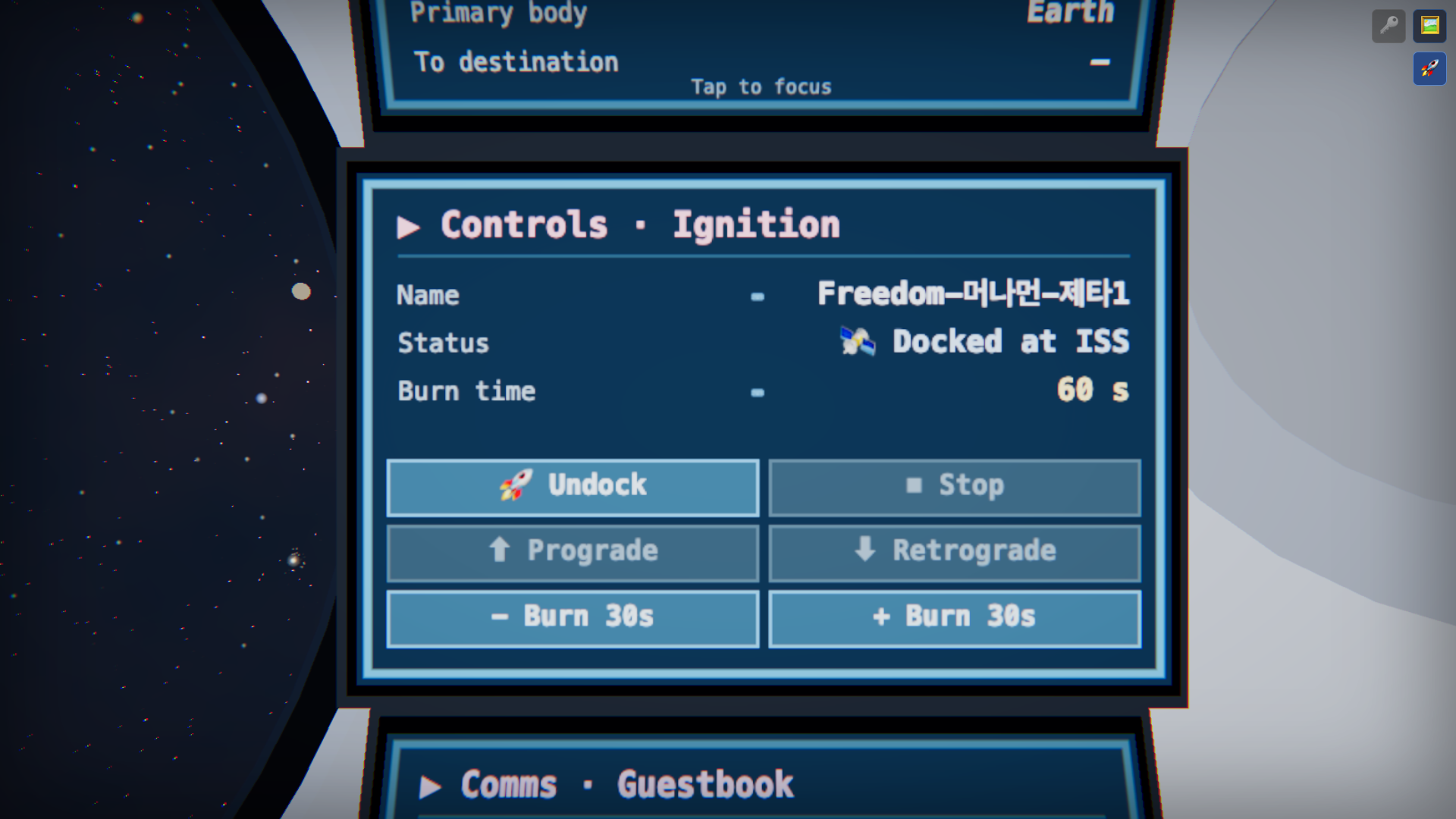
Tapping a monitor enlarges that panel to face the seat so its text and buttons become crisp. Below are the ① Destination and ⑤ Helm panels, each focused, as captured in-game.
Roles of the 6 panels (left: navigation · right: status, piloting, comms)
The design principle is self-containment: finish a given task with just one column. The left three panels handle navigation (pick a destination → plan a route → execute), and the right three panels handle check flight status → direct piloting → comms, each top-to-bottom.
Destination-bearing dial (star chart), a destination list sorted by distance, 🔍 search, and the header's 📡 radar instant scan. Tap a body to "arm target"; inline chips per row (➕ orbit · 🔥 direct).
Target (currently armed target, orange during a burn) · speed · γ (gamma) · onboard date · standard time · dominant body · distance from Earth · distance to destination. A heads-up screen with no buttons.
Use ➕ to schedule the current destination as a step — orbit · gravity assist · landing · rendezvous · interstellar cruise · ⏱ arrival hold. The route you've laid out stacks up as queue cards.
🔥 burn / 🚀 separate / 🛫 lift off · ⏹ stop · ⬆ prograde align / ⬇ retrograde align · burn time ± · name & status. The "press it yourself" manual controls gathered here.
⚡ fastest arrival · ▶/⏸ plan · 🗑 clear · 🧭 align to destination · ⏹ stop. Shows the current maneuver · arrival ETA · number of plan steps. The left column completes navigation right here (pick → plan → execute).
🛰 open comms (emoji transmit · 🛟 drop beacon) · 📖 guestbook · nearby (100km) ship & beacon registers. The right column completes status → piloting → comms.
Where the frequently used controls live
Even the urgent, frequently used actions are all inside the panels, so you finish within reach without moving screens — once you've just picked a target in ① Destination, the inline chip right there lets you add it to the plan or do a direct burn immediately. Below is which panel each action lives in.
Virtual iPad
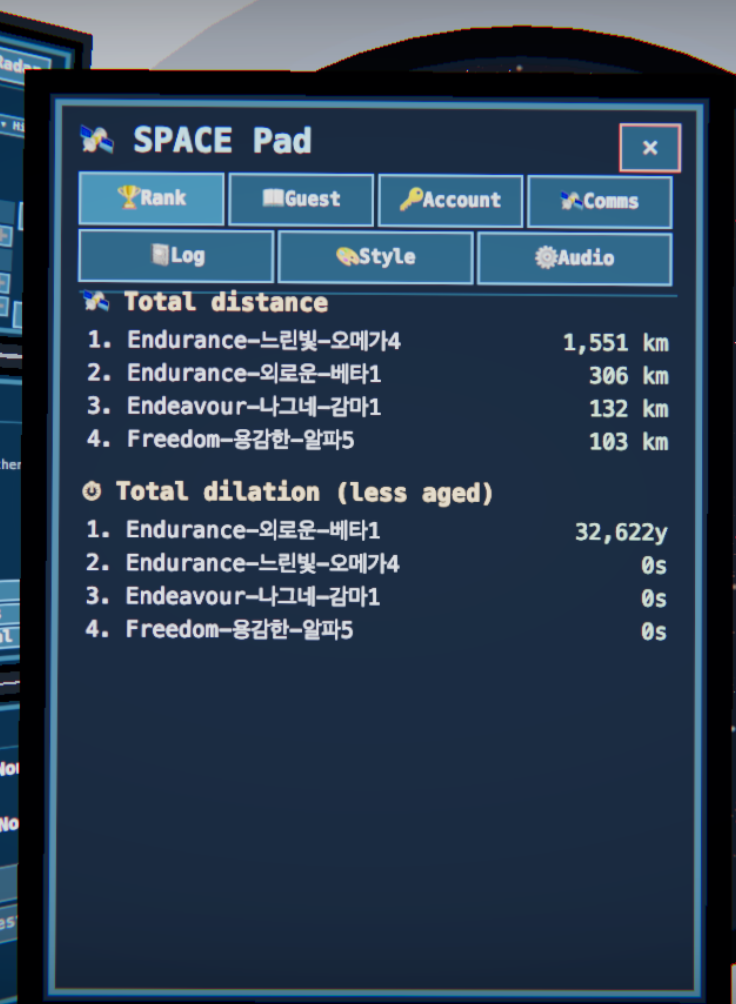
The modal features summoned by context (rankings · guestbook · account · comms) are unified into a single handheld portable tablet. Normally it's stowed on your lap; press T and it rises to reading distance in front of the seat, and ✕ or T puts it away again.
🏆 Rankings
Racing/voyage leaderboards (read-only).
📖 Guestbook
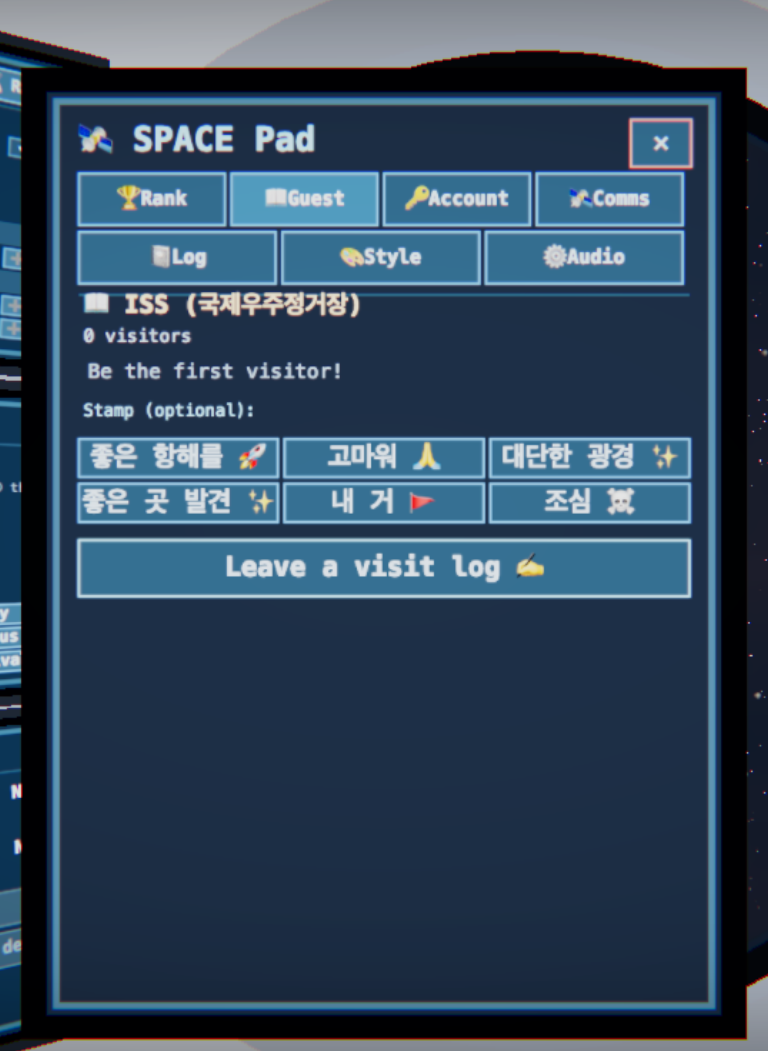
Records and stamps from bodies you've visited — leave an emoji and an intent.
🔑 Account · Login
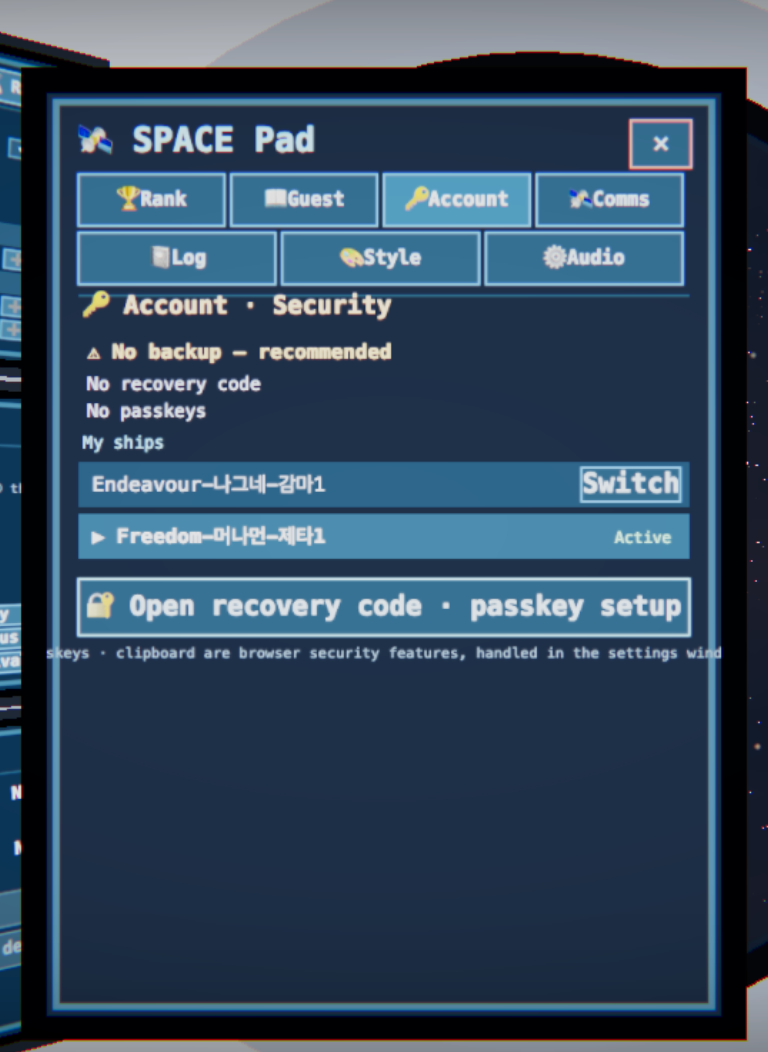
Display/copy recovery code, register/delete passkey, multi-ship switcher.
🛰 Comms
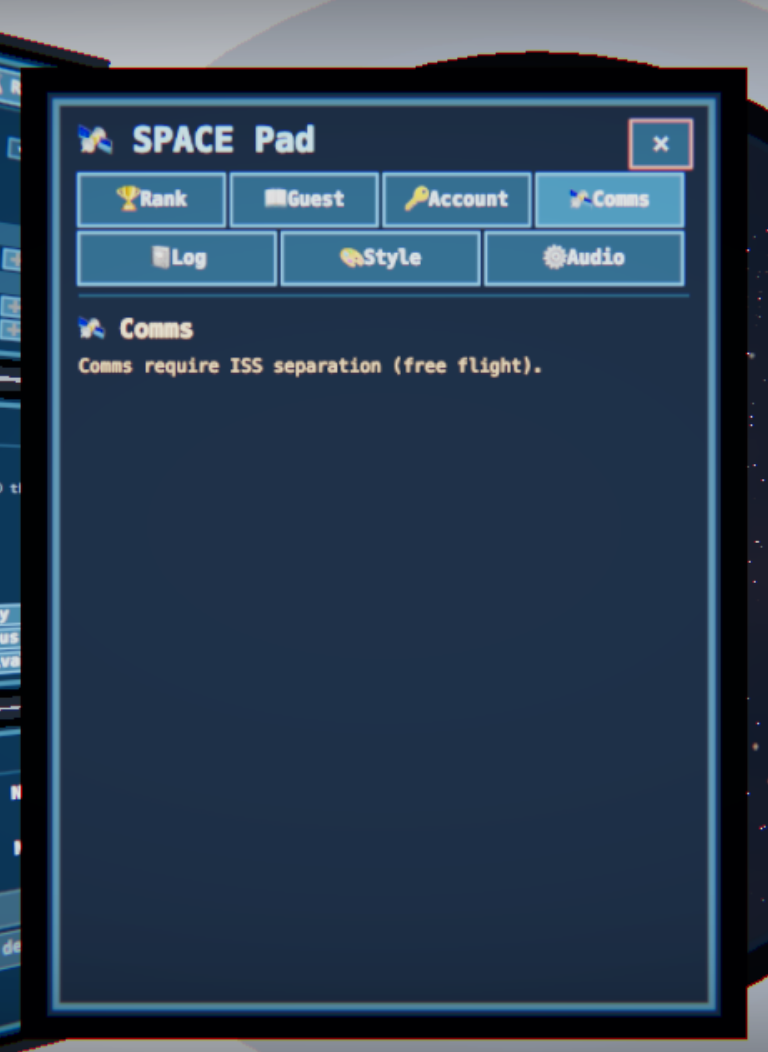
Pick one emoji and transmit it omnidirectionally to everyone nearby, or leave it as a permanent beacon at your spot.
In practice — the tablet's 6 apps
Press T to raise the tablet, then switch apps from the tab bar at the top — 🏆 Rankings · 📖 Guestbook · 🔑 Account · 🛰 Comms · 📒 Log · 🎨 Style. The screen taps and scrolls just like a cockpit monitor, and the top-right ✕ or T puts it away. Below is each app in-game.
Spread it across screens — Multiview
You can open the same ship at several web addresses at once. The exterior view, the cockpit, each of the six monitors, and the virtual iPad each have their own address, so you can keep a different screen in every window or tab (or on separate devices/displays) and watch them together. Every screen stays synced in real time through the server — undock, burn, or change destination on one and the rest update instantly (the server is authoritative; each screen just draws the one same ship from its own viewpoint).
The address for each screen
Every address hangs off the game path /play. A ?panel= address opens that monitor
as a face-on close-up (forcing first-person), and also accepts the numbers
0–5 in place of the alias (Destination=0 … Comms=5).
| Screen | Address | What |
|---|---|---|
| Ship exterior | /play?view=external | Third-person spectator camera (no controls). |
| Cockpit (full) | /play?view=cockpit | First-person cockpit — all six panels. |
| ① Destination | /play?panel=dest | Star chart · list · search · radar. |
| ② Route | /play?panel=plan | Flight-plan queue (CDU). |
| ③ Autopilot | /play?panel=autopilot | Queue execution · arrival ETA. |
| ④ PFD instruments | /play?panel=pfd | Speed · γ · clocks (read-only). |
| ⑤ Helm | /play?panel=controls | Burn · align manual controls. |
| ⑥ Comms · guestbook | /play?panel=comms | Comms · guestbook. |
| Virtual iPad | /play?panel=pad | Rankings · guestbook · account · comms · log · style apps. |
How they stay in sync
- Multiple tabs/windows in the same browser — automatically the same ship (they share the ownership token). Just open the addresses above in new tabs.
- A different device or browser — log in to the same ship on each (enter your recovery code or use a passkey), then open the address. → Login · ship backup
- Each screen only draws its own viewpoint, but you can act from any of them — the server sends everyone the same snapshot.
?view=external, the instruments on a side screen with ?panel=pfd, and the helm on a
tablet/phone with ?panel=controls — a real mission-control wall. To open on another device, type
the site domain in front, e.g. space.woojinkim.org/play?panel=pfd.Keyboard shortcuts
| Key | Action | Notes |
|---|---|---|
| V | Toggle first-person cockpit ↔ external view | You can also return via the external screen tab |
| C | Camera mode (third-person chase ↔ ship-centered) | |
| H | Hide all UI (screenshot mode) | Hides the trajectory guide lines too |
| T | Summon / dismiss the virtual iPad | Only inside the cockpit |
| U | Toggle the cosmology clock | Lookback / redshift / expansion HUD |
| ←→↑↓ · WASD | Move between cockpit monitors | Left/right = columns, up/down = rows |
| Esc | Release monitor focus | |
| P | Performance (FPS) meter | For development |
e.code),
so they work even while Korean input is active.📸 Amazing places worth visiting
Go in person to the places you've only seen in pictures. The gallery below was all shot inside the game — starting from the International Space Station and passing planets and probes, on through alien star systems and the supermassive black hole at the galactic center, all the way to the edge of the observable universe, strung together into a single journey. The destination guide that follows gives the real distance and character of each place. Within the Solar System you fly there directly; beyond the star systems you reach them via interstellar cruise or a wormhole. Tap a photo to view it larger.
Gallery — famous and beautiful places
※ The screenshots are real captured scenes taken automatically with a headless browser (because it uses software rendering, the actual GPU display is sharper). To go there yourself → how to get there.
Within the Solar System direct flight
- Earth · ISS · artificial satellites — the starting point. The ISS follows its real-time position from measured TLE data. Skim past objects in low and geostationary orbit and log them in your voyage journal.
- The Moon, Mars, Jupiter and its moons, Saturn's rings — actual current positions computed from Keplerian orbital elements (Standish). Gas giants are grouped as a parent body ▸ moons and rings.
- The asteroid belt · Kuiper belt · Oort cloud — frontier regions filled with seeded point clouds.
- Comets · probes — comets move fast, so you catch up with tracking (rendezvous), and you observe alongside real probes such as Voyager and New Horizons.
The nearest star systems interstellar cruise
You can visit more than 26 real nearby stars at their true parallax distances. On arrival, a planetary system is deterministically synthesized from the star's spectral type (same star → same planetary system).
| Destination | Distance | Highlights |
|---|---|---|
| Proxima Centauri | 4.25 light-years | The closest star. Habitable-zone planet Proxima b. |
| Alpha Centauri (A+B) | 4.37 light-years | Our most Sun-like neighbor, a binary star. |
| Barnard's Star | 5.96 light-years | Cool super-Earth Barnard b. |
| Sirius | 8.66 light-years | The brightest star in the sky (with a white-dwarf companion). |
| Tau Ceti | 11.9 light-years | Habitable-zone candidates Tau Ceti e/f. |
| Vega | 25.0 light-years | Hosts a debris disk; once the pole star. |
| Fomalhaut | 25.1 light-years | A distinct debris disk (Fomalhaut b). |
| TRAPPIST-1 | 40.7 light-years | A seven-planet Earth-like system, several in the habitable zone. |
| Arcturus · Pollux · Aldebaran | 34–65 light-years | Red giants hosting exoplanets. |
| Polaris (the North Star) | 433 light-years | A Cepheid variable. |
| Betelgeuse · Rigel · Antares | 548–863 light-years | Supergiants of Orion and Scorpius. |
| Deneb | 2,615 light-years | The tail of Cygnus, a supergiant of the Summer Triangle. |
Black holes and beyond the galaxy wormhole / aiming
- Sagittarius A* (Sgr A*) — the supermassive black hole at the center of our galaxy, about 26,000 light-years away, with a mass of roughly 4.3 million solar masses. Its event horizon radius is about 12.7 million km (≈0.085 AU). Nearby you experience extreme time dilation.
- M87* — the supermassive black hole of the Virgo galaxy (6.5 billion solar masses). Its horizon is so vast it rivals Pluto's orbit.
- The Andromeda Galaxy · the Virgo Cluster · the galactic center — distant targets beyond 1 light-year are direction (aiming) only. You can only cross to other star systems through a wormhole.
- The edge of the observable universe — out to a comoving radius of about 46.5 billion light-years (≈14.3 Gpc). Peer into the universe's past through redshift and lookback time (→ cosmic expansion).
How to Get There
1. Within the Solar System — Burns and Gravity Assists
- ① Tap a body at your destination to arm the target → the ship automatically orients toward it (no thrust).
- ⑤ Use 🔥 Burn on the flight stick to accelerate. Decelerating means a flip-and-burn that turns your attitude 180°, so it isn't instant — the rotation takes time (physically correct).
- When you pass near a large body, the N-body gravity field performs an automatic gravity assist (swing-by). Choose a body that allows a gravity assist as your destination, and the server manages the approach.
- On arrival, schedule orbit insertion · landing · rendezvous from the ② Route panel.
2. Beyond the Star System — Interstellar Cruise
Light-year distances would take a lifetime under direct thrust. Instead, schedule an interstellar cruise from the ② Route panel, and the ship rides an analytic worldline at 0.9999c toward the target star. An isolated, solo cruise is pulled forward to an instant arrival via proper-time fast-forward (the shared causality that lets you communicate with other ships is preserved). On arrival, the chart switches to the target star system and its planetary system is generated.
3. Between Star Systems — One-Way Wormholes
Each star system has 2–3 one-way wormholes at deterministic locations. Discover them with the 📡 Radar (scan) in the ① destination header (per-ship and persistent); when you reach one, the chart switches instantly to another star system (zoom out → white worldline → arrival cinematic). To come back, you must find a different wormhole opening toward this side.
sol chart.Physics in This Universe — Overview
The SPACE universe is a deterministic simulation. Every state can be reproduced from just the epoch + seed + command log. Fixed timesteps, single-threaded integration, and pinned library versions eliminate floating-point non-determinism.
Coordinates · Time · Units
| Item | Value / Standard |
|---|---|
| Reference frame | ICRF/J2000 heliocentric inertial frame (origin = center of the Sun) |
| Coordinate storage | float64 (double precision, ~15–16 significant digits) |
| Distance units | km (storage & transport), displayed as: AU · light-minutes · light-years · Mpc |
| Velocity units | km/s |
| Time | Seconds elapsed since the J2000 epoch (2000-01-01T12:00 TT). Every universe state is a function of this value. |
Speed of light c | 299,792.458 km/s — the absolute upper bound on all speeds |
| 1 AU | 149,597,870.7 km |
| 1 light-year | 9.4607 × 10¹² km |
Gravity · Orbits · Gravity Assists
Restricted N-Body Gravity (One-Way Coupling)
The ship feels the combined gravity of the Sun and all the planets. The ship's mass is negligible compared to the bodies, so the bodies' orbits are computed independently (one-way coupling) and only the ship moves within that gravity field. As a result, real gravity assists (swing-by) arise naturally without any frame switching.
Kepler Orbits + Symplectic Integrator
- Everyday coasting flight is propagated analytically as a Kepler orbit, with no need to save state every tick.
- Close encounters and gravity-assist passes are refined with a velocity Verlet symplectic integrator + adaptive sub-steps. It's conservative enough that energy drift over 3 LEO orbits is 0.0000%.
- SOI (sphere of influence) tests determine the dominant body, and SOI entry/exit is reported as an event.
Single Main Engine — Thrust Always Points Forward
The Dragon capsule has its main engine in only one direction, at the nose (front). There is no retro engine. To change direction you must rotate the entire ship with attitude control (RCS) and then fire, and the rotation happens gradually within a maximum angular rate. That's why deceleration is a flip-and-burn (rotate 180°, then fire) and isn't instantaneous.
Atmospheric Reentry
When you enter a body's atmosphere, too steep an entry angle means burn-up (game over), while too shallow means a skip (bouncing off) — both are judged physically. You must enter through the proper corridor to descend safely.
Speed-of-Light Limit · Light Delay
The most fundamental rule of this universe: no information can exceed the speed of light c. Not position observations, not messages, nothing. The server simulates this constraint authoritatively.
Visible Position = Past Position (the Delay Ghost)
When ship A "sees" ship B, it is seeing B as it was in the past, by an amount equal to distance ÷ c. This is the heart of retarded time — what you see is always the past.
- When close, the delay is small and things look almost current, but the farther away, the larger the delay, so the displayed position diverges from the actual one.
- Far enough away, the current position cannot be known exactly (only past information exists) — it is shown as a blurry uncertain-position ghost.
- The position history of nearby ships is buffered for about 84 hours (up to ≈60 AU of separation).
Comms Signals Spread at the Speed of Light Too
An emoji transmission is a spherical wave that spreads omnidirectionally at c from the sender's position at send time t — like radar, with no direction to aim. Nearer ships are reached sooner; the farther away, the later it arrives.
A beacon is a permanent signal source that stays in one place. A ship passing within 100km of it is recorded in its visitor register, and ships that pass each other within 100km likewise log one another. A distant party is still only visible as a ghost at its past (delayed) position, so an encounter ultimately happens only by drawing close.
Special Relativity · The Twin Paradox
Speed Limit and the Lorentz Factor γ
The speed limit for your ship is 0.9999c. The faster you move, the more time slows down, by an amount set by the Lorentz factor:
γ = 1 / √(1 − v²/c²)
Proper Time — The Onboard Clock Runs Slow
Your ship's onboard clock (proper time τ) ticks 1/γ times slower than coordinate time (t):
dτ = dt / γ. Flying at 0.9999c, the onboard clock is about 70.7 times slower than the outside world.
The HUD (④ PFD) shows coordinate time, onboard proper time, and γ side by side.
The Twin Paradox — Experience It Firsthand
If you sail to Proxima Centauri (4.25 light-years) at 0.9999c:
- Coordinate time (the outside world): about 4.25 years
- Proper time (onboard clock): 4.25 years ÷ 70.7 ≈ about 22 days
- On a round trip the ship ages about 44 days, while about 8.5 years pass in the outside world.
By comparing your accumulated proper time against another player's, you can directly confirm that the elapsed time differs between you depending on who sailed faster or through deeper gravity.
Black Holes · Gravitational Time Dilation
The Event Horizon and Strong Gravitational Fields
- Event horizon:
r_s = 2GM/c²(Schwarzschild radius) - Innermost stable circular orbit (ISCO):
6GM/c² = 3·r_s— any orbit inside this spirals inward to its doom - Photon sphere:
1.5·r_s - Near strong gravitational fields, the Paczyński–Wiita pseudo-Newtonian potential
Φ(r) = −GM/(r − r_s)faithfully reproduces the correct ISCO, perihelion precession, and infall.
Gravitational Time Dilation
The deeper you descend into a strong gravitational field, the slower time runs:
dτ/dt = √(1 − r_s/r)
- At the photon sphere (r = 1.5 r_s), time runs at about 57.7% of the rate seen far away.
- It approaches 0 as you near the horizon — to an outside observer, time appears to stop.
- While you linger briefly near the horizon of Sagittarius A*, thousands of years pass in the outside world.
- The velocity-based γ and gravitational time dilation multiply together:
γ_total = γ_velocity × √(1 − r_s/r).
Gravitational Lensing · Redshift
Light from stars and galaxies behind a black hole bends to form an Einstein ring. The game renders this in real time with a screen-space shader (a single focused black hole gets full ray tracing). Signals escaping the horizon are delayed and shifted red (gravitational redshift). To an outside observer, an infalling ship slows down and reddens until it freezes at the horizon, becoming a permanently indeterminate ghost.
Cosmic Expansion · The Observable Universe
Press the U key to turn on the cosmological clock and read, at the largest scales, the universe's expansion and its past. The game uses standard ΛCDM cosmology (Planck 2018).
| Parameter | Value |
|---|---|
| Hubble constant H₀ | 67.4 km/s/Mpc |
| Matter density Ωm | 0.315 |
| Dark energy ΩΛ | 0.685 |
| Age of the universe | 13.8 billion years |
| Comoving radius of the observable universe | about 46.5 billion light-years (≈14.3 Gpc) |
| 1 Mpc | 3.262 × 10⁶ light-years = 3.086 × 10¹⁹ km |
Redshift and Lookback Time
Distant objects are redshifted (z) by however much the universe has expanded since their light set out. The farther you look, the further into the past you see (lookback time):
- z ≈ 1 → about 8 billion years ago (half the age of the universe)
- z ≈ 10 → about 13 billion years ago (cosmic dawn, the first stars and galaxies)
- z ≈ 1100 → about 13.8 billion years ago (the surface of last scattering = the cosmic microwave background)
Accelerating Expansion — Receding Distances
The universe is expanding at an accelerating rate, so sufficiently distant objects recede with a recession velocity v = H × D.
Several distance concepts are used together — comoving distance (the present-grid distance with expansion removed),
light-travel / lookback distance (the time light traveled × c), luminosity distance for brightness correction,
and angular diameter distance for angular-size correction. The coordinates themselves stay comoving (static, deterministic), while expansion
is reflected in the display and render layers.
Interstellar Cruise · Wormholes
Relativistic Cruise Worldline
An interstellar cruise accelerates your ship to 0.9999c and heads toward a destination star along an analytic worldline. For a distance d, the coordinate time and the onboard proper time are:
- Coordinate time = distance ÷ (cruise speed) ≈ distance (light-years) / 0.9999 years
- Onboard proper time = coordinate time ÷ γ
Example) Proxima (4.25 light-years): coordinate time ≈ 4.25 years, onboard clock ≈ 22 days. On arrival you switch to the destination star's chart, and non-sol charts apply their own physics guards.
Causal-Island Proper-Time Fast-Forward
If you are cruising alone, outside the region where you could communicate with other ships (shared causality), the game pulls a long cruise straight to arrival — you don't have to wait years in real time. Shared causality (the range within which you could exchange signals with someone) is preserved, so physical consistency is never broken.
One-Way Wormholes
Wormholes are another way around the c barrier. Each star system has 2–3 of them at deterministic locations. You discover them with a 📡 radar scan (per ship, persistent), and reaching one instantly switches your chart to a different star system. They are one-way, so to come back you must find another wormhole opening on that side.
Frequently Asked Questions
What happens to my ship if I close the browser?
The server keeps propagating its trajectory. When you reconnect, it restores and shows your current position and upcoming events (the next gravity assist, etc.). Ships, messages, and simulation time are preserved across server restarts.
Why can't I exceed the speed of light?
Because the core experience of this game is real physics. Only with a light-speed limit do phenomena like light delay, relativistic time dilation, and the twin paradox become meaningful. Instead, interstellar cruise and wormholes handle the long distances.
Can I chat directly with other players?
There is no free typing. You pick a single emoji and either transmit it omnidirectionally to everyone nearby, or leave it as a permanent beacon at your spot. Signals spread at the speed of light, and ships and beacons you meet within 100km are recorded in the comms registers.
What if I accidentally fall into a black hole or burn up in an atmosphere?
You restart at the ISS, but records such as your visit history are preserved. Take it as part of the exploration.
Does it work on mobile?
Yes. Touch panning (drag), zoom (pinch), and monitor tap/swipe all work, and on small screens the buttons and chips scale up.
Is my data safe?
We store no personal information at all. Ownership is tied to a secret token of which only a hash is stored, and we never ask for your email or real name. Backups are entirely up to you (→ Login · Backup).